Making popups for mIRC, is very simple. It's not something I'm going to 'dig' into
to much, since it's very understandable. Popups are good for people who use the mouse a lot, or can't remember commands in the head. Many of the advanced IRC users, prefer commands.
You can access your popup scripts, by pressing ALT+P or by clicking, Tools in the menubar, and choosing 'Popups', Here's a screenshot of it:
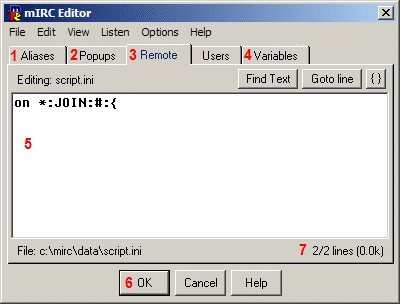
1. Alias section
2. Popup section
3. Remote section
4. Variables section
5. The place to write your scripts.
6. The 'OK' button is what you click if want to save, else click cancel
7. Gives you info on, what current file is being scripted in, and lines, and file size.
Now enough of this chit chat, let's make some popups. Instead of making pointless popups, let's make some things that are even useful.
When you have the mIRC Editor open, and your in the Popup section of the mIRC editor, if you click the Popup in the menubar it will show you how it looks in your mIRC nickname list. If you click the "View" in the menubar, you can select what Popup you want to script on, There are 5 popups
- Status window popup
- Query/DCC Chat popup
- Channel popup
- Nicklist popup
- And the menubar in your main mIRC window.
Nicklist popups
Now lets start out by making a popup for the nickname list, here we go
Kickban:{
ban $1 2
kick # $1 $input(Enter Kickban Reason:,1)
}
The "Kickban" will be the name of the popup item, and ":" declares that this is the beginning of the script for that item you can also use it with out, by just using Kickban { since mIRC is pretty smart. In the 2nd line it bans the user, $1 will return the nickname of the user you selected in the nicklist. And the number "2" is a function that belongs to the /ban command which tells it to, ban like this "*!*@ask.for.m0re.org"
The 3rd Line kicks the user, # returns the active channel, and $1 again, returns the nickname.
The $input() identifier requests the user for a input and returns it, if you need more help of under functions of the $input dialog, type /help $input
Creating separator in popups, is something that I would very strongly suggest, since this can organize your scripts popups very well, else it's going to look like a dump.
You can create submenus, by using the "." dot in front of text, let's try some things out.
Topmenu { echo -a * top menu }
-
Mainmenu
.Menu1
..Submenu1:echo -a Submenu1
.Menu2
..Submenu2:echo -a Submenu2
.-
.Menu3
..Submenu3:echo -a Submenu3
As you can see, each 'Menu' has it's Submenu and I showed you an example of using the separator as well.
And well for people like Asmo, wondering what the /echo command does, let me explain. The /echo command will print some text into a specified window.
Try some of these commands:
/echo 3 -a The -a switch puts the text into a active window
/echo 4 -s The -s switch puts the text into the status window
Notice you can put colors into your /echo command to, you can use RGB colors, and mIRC's default 16 colors. For a full documentation on this command, type /help /echo
Now let's make something you can use, maybe a nifty little popup Let's start removing everything there is already (I assume your running a clean mIRC, if not I would advice you to install a clean mIRC, and test some of this stuff)
Let's add a 'info' content to the popups to our nicklist:
Info
.Query { query $1 }
.-
.Whois { whois $1 }
.Whois Extended { whois $1 $1 }
.-
.Address Book { abook }
Now if you right click there should be a popup called "Info" with items, like query, whois. The commands are pretty clear that to do a whois on a person you type /whois nick, and since $1 returns the users nickname, we put $1 in there since that will return the users nick.
Let's add some Controls:
Control
.Op { mode # +oooooo $1-6 }
.Deop { mode # -oooooo $1-6 }
.-
.Voice { mode # +vvvvvv $1-6 }
.Devoice { mode # -vvvvvv $1-6 }
.-
.Kick (Reason) { kick # $1 $input(Enter kick reason:,1) }
.Kick { kick # $1 }
.-
.Kick, Ban (Reason) { mode # +b $address($1,2) | kick # $1 $input(Enter kick reason:,1) }
.Kick, Ban { mode # +b $address($1,2) | kick # $1 }
The popups get a little harder there eh?, well don't worry lets check it out The $1-6 could be understood in this way "1st Nickname-to 6th nick", so this takes the first 6 nicks marked in the nickname list, and either Deops, Ops, Voices or whatever you chose. I think you get the point, you can also do it in another way instead of $1-6 by using $1 $2 $3 $4, since this number of the user who gets marked now let's say I mark 3 nicknames, "Asmo Tween fubik", then $2 would be Tween, and $1 Asmo and my nick would be $3, to get all the nickname use $1- with a - at the end.
The next is the kick with reason, the IRC command for kicking is /kick #channel nick reason and nick & channel is already being returned, and I showed you above how to use the $input() identifier so you could prompt a user for a input. The next line is a kick with out a reason, very understandable.
Next up we have Kick, Ban with reason, it's similar to the kick with reason, only we add a ban before we kick, banning a user on IRC, is being performed by typing/mode #channel +b *!*what@ever.you.wanna.ban.dk, mIRC has IAL, which means Internal Address List, mIRC stores information about users hostmasks, and saves them Internal to use with mIRC scripting, the identifier works like this: $address(nickname,) the , is a number that needs to be provided for mIRC so it knows how to ban a user. Here's some from the mIRC help file:
0: *!user@host
1: *!*user@host
2: *!*@host (host ban)
3: *!*user@*.host (ident+host ban)
4: *!*@*.host
5: nick!user@host
6: nick!*user@host
7: nick!*@host
8: nick!*user@*.host
9: nick!*@*.host
You can also use from the numbers 10 to 19, but instead of using * wildcards, it would use ? wildcards, which could replace the numbers in the address (This does take some time to understand, but try testing it out).
Now let's add some other options like DCC send, DCC chat, and CTCP's:
DCC
.Chat { dcc chat $1 }
.Send { dcc send $1 }
CTCP
.Ping { ctcp $1 ping }
.-
.Clientinfo { ctcp $1 clientinfo }
.Version { ctcp $1 version }
.Time { ctcp $1 time }
Now that I have given you examples of using popups in the nickname list, you should be able to make some your self.
Channel Popups
Now let's add something to the channel popup, let's say when you right click on a channel, you want to be able to change topic, instead of having to double click on the main window.
Let's add:
new topic { topic # $?="Set new topic to?:" }
Now the $?="" is just like the $input() identifier, only its not that advanced and the $?="" is for more older mIRC versions, I would suggest you use $input() for more 'freshness'
I don't think I need to explain much more on popups, cause I think you get the picture, of how it works.
Let's resume, we know the # represents the channel, and $1 the 1st nick, $me returns your nick. Now you can pretty much make great popups, to fit you, and how you want them. It's all about being creative :-)
? Discuss This Article here.
|

 Syndicate


