

Improve your wifi coverage by choosing the best channel
Wi -Fi channel saturation
If you have HOUSE WIFI PROBLEMSwhether you are very slow, your games in Steam take a long time to go down or simply do not open the apps that require access to the server, the problem may be in the Wi -Fi router configuration. We are going to leave you with a series of tricks to Optimize your Wi-Fi connectionstarting with this where we will teach you How to change the channel to improve your wifi network and avoid interference
Today everyone has a Internet connection at homeand therefore a Wi -Fi network, even more than one for each home, for example one for 2.4 GHz and another for the 5 GHz band. These connections work in A specific channelwhere if there are several in the same channel can HAVING SATURO And make your connection slower.
Generally, routers are configured for establish form Automatic a channelthat supposedly should be one that is free or less saturated. But this Not always It is managed in the form more efficient. Ideally, avoid habitual channels such as channel 1, and generally channels 6 and 11 are usually available. But we don’t give ourselves with this.
In this little guide we will tell you How to look for the best available channel without interference and subsequently Change it on your network or wireless networks.
Find the best available channel with Wi -Fi Analyzer
For this they exist tools that will allow you to determine, even graphically, what is the less congested channel taking into account all the networks you have. We are going to use a very popular tool that is called Wi -Fi Analyzeryou have it available for both Windows and Android.
This application offers A visual of the channels so that you can see the one that best suits your network, that is, those who are free of interference.
Let’s see How to use the application To see these graphics and recommendations.
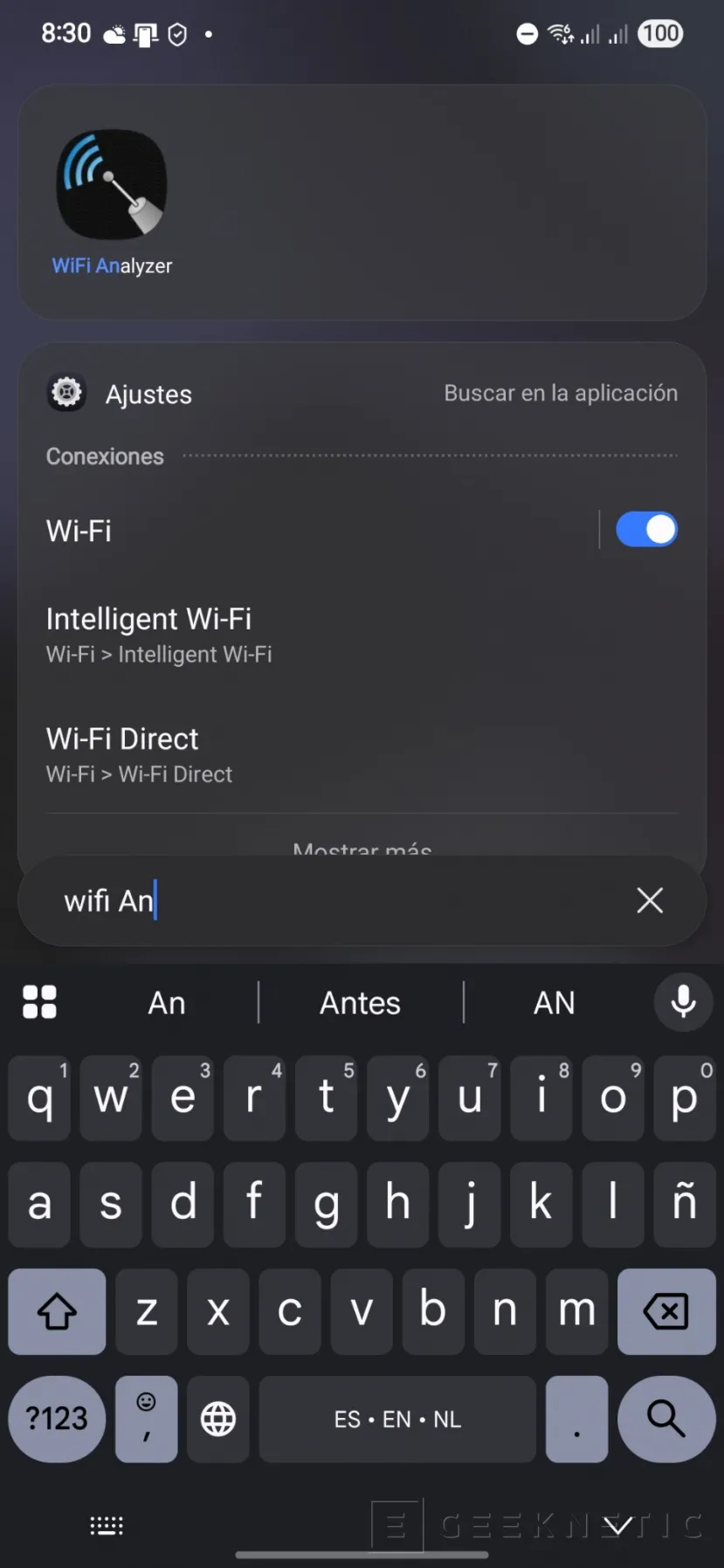
- Open the application Wi -Fi Analyzer From your phone or from Windows.
- Select the Frequency type of the network you want to consult.
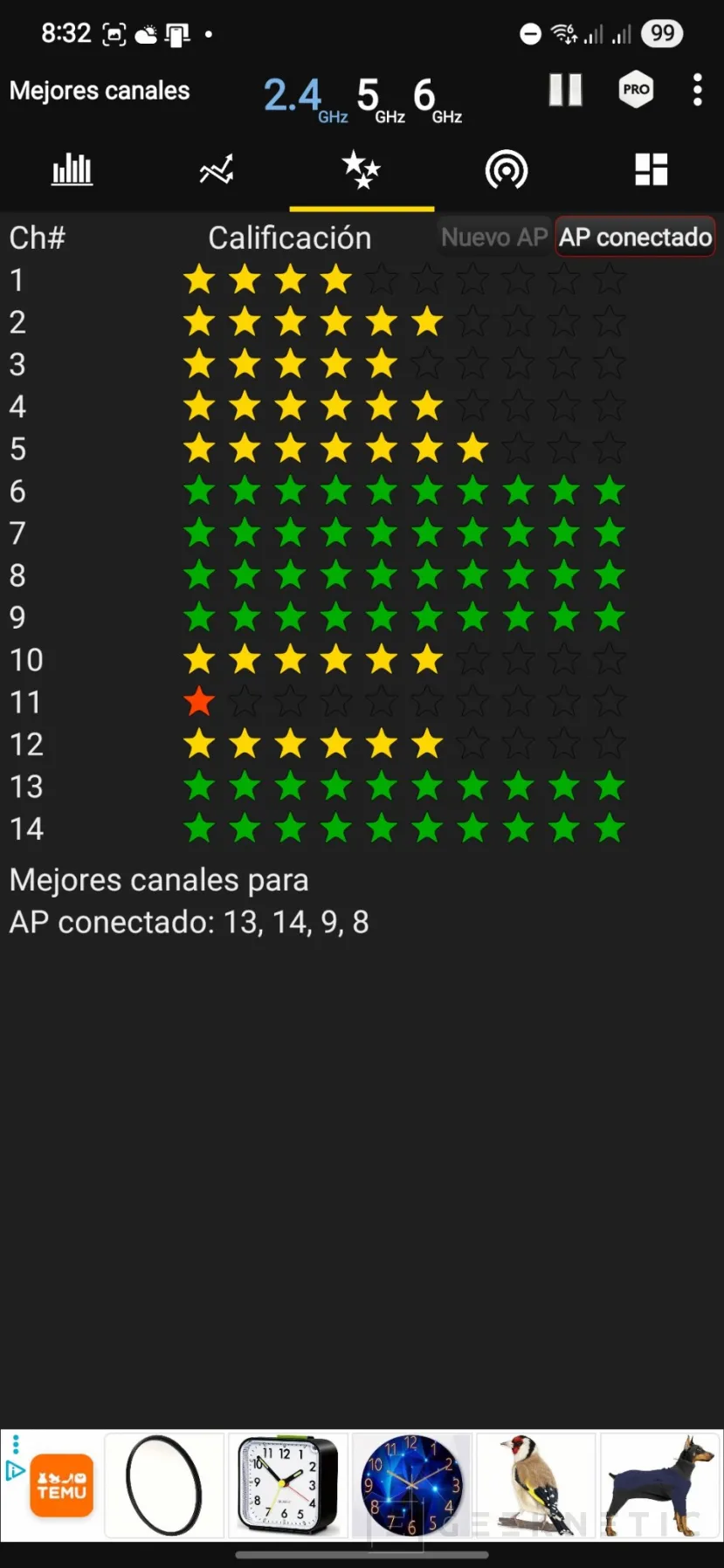
- For a vision more graphic You can use The first icon With the bars, for a clearer vision You can use the stars icon. In this last way even You will recommend the best For the current wifi.
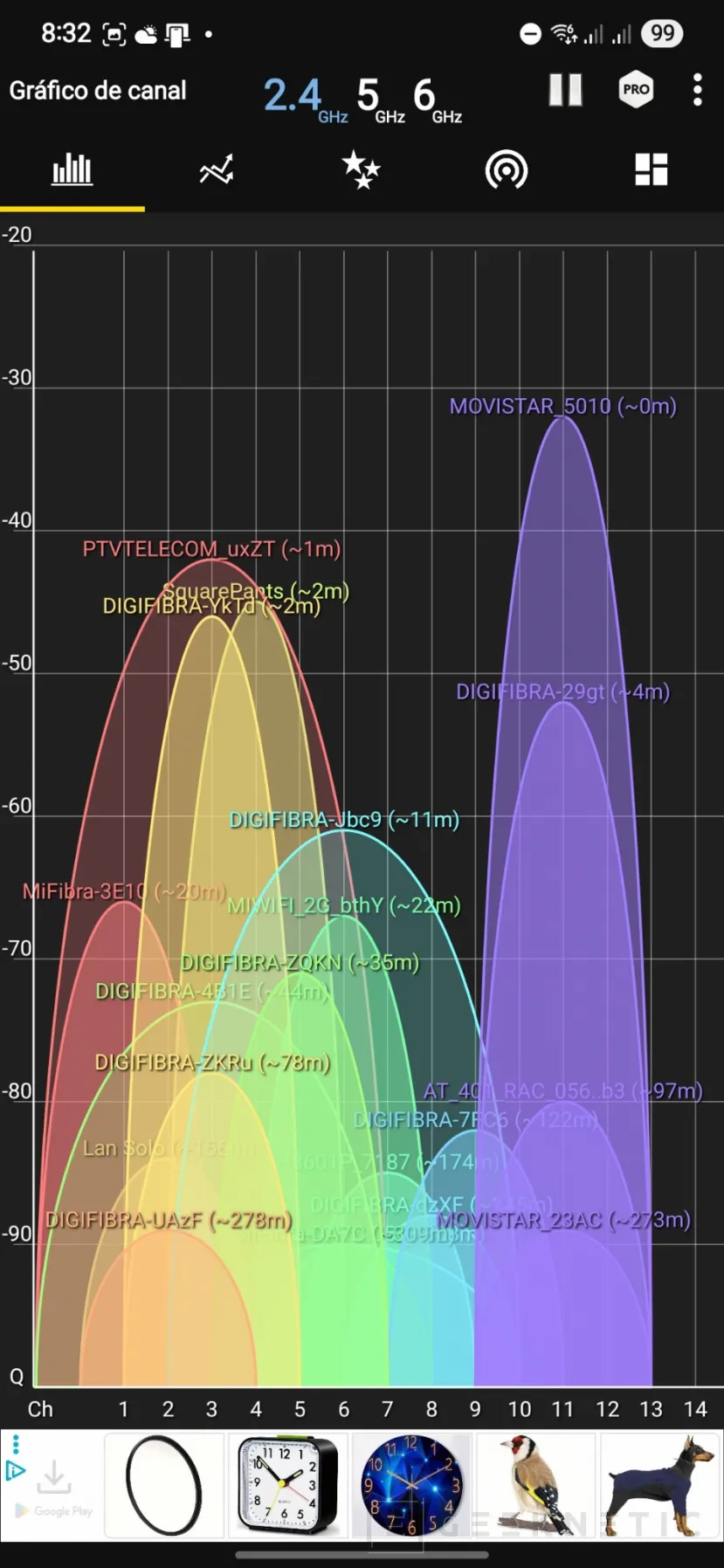
- Keep or memorize this data To add them later.
Thus you can check all the networks within your reach and also that Frequencies and channels movewhich gives you an idea to place yours without interference.
Change the Wi -Fi network channel in the router
Knowing the freest channels, now we just have Enter the router configuration To be able to change it. Unfortunately, each router has A different menuso we are going to show you in a general way how to do it for your wifi connection. Generally, the option To change channel this together at options of configuration of the own wireless networkso it should not be very complicated to access this function.
- Enter your router configuration From the browser with 192,168.1.1, do not forget that the last two are some. You can also do it if you have application to manage the configuration of your router.
- Enter you User and access password to the router (not the one of the wifi). If you don’t know them, they should be written in the back or below the router.
- Go to the section of Network configuration and select the Wi -Fi Network What do you want to configure.
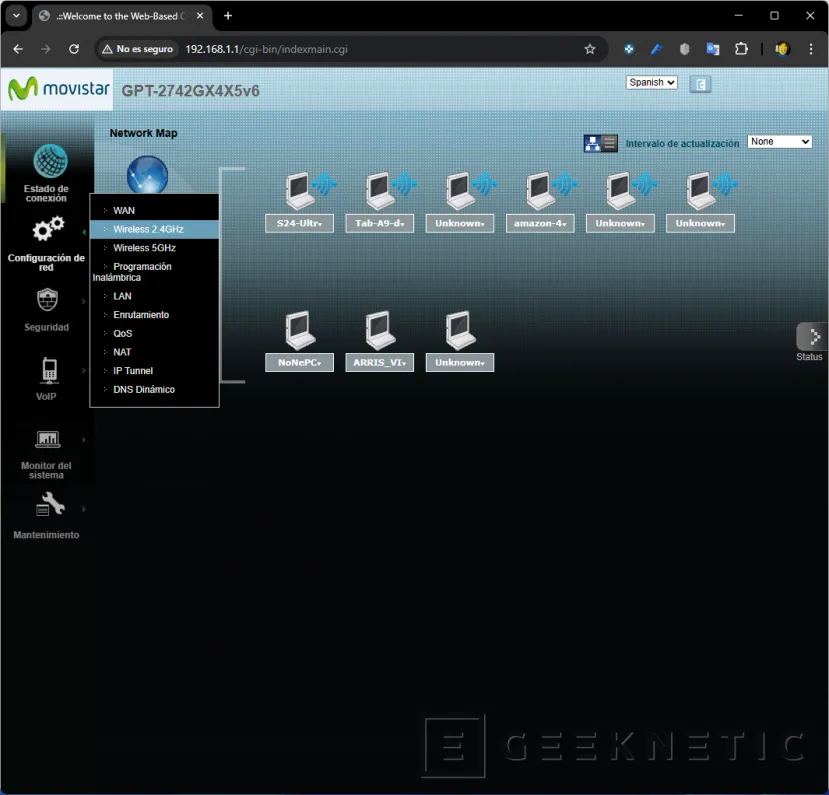
- Ought appear on which channel is workingit is possible that if you are in automatic This word appears instead of the channel in which it is currently.
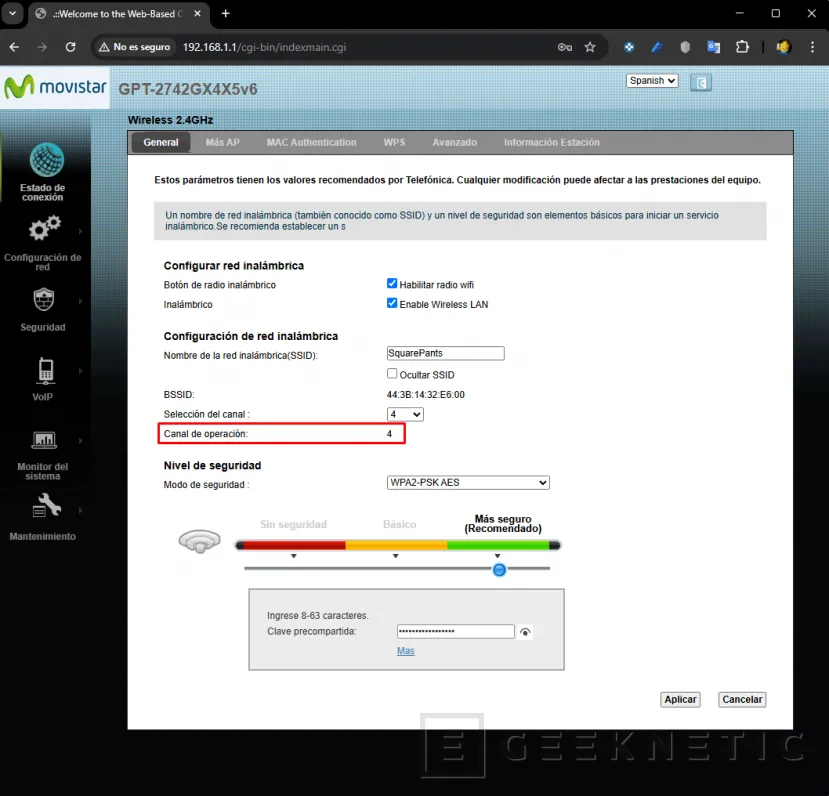
- On this same screen, where there is also the option to put the SSID and the password you should also find to Select the channel. It may be a drop -down or that you have to introduce hand valuein the latter, make sure that it remains within the minimum and maximum values.
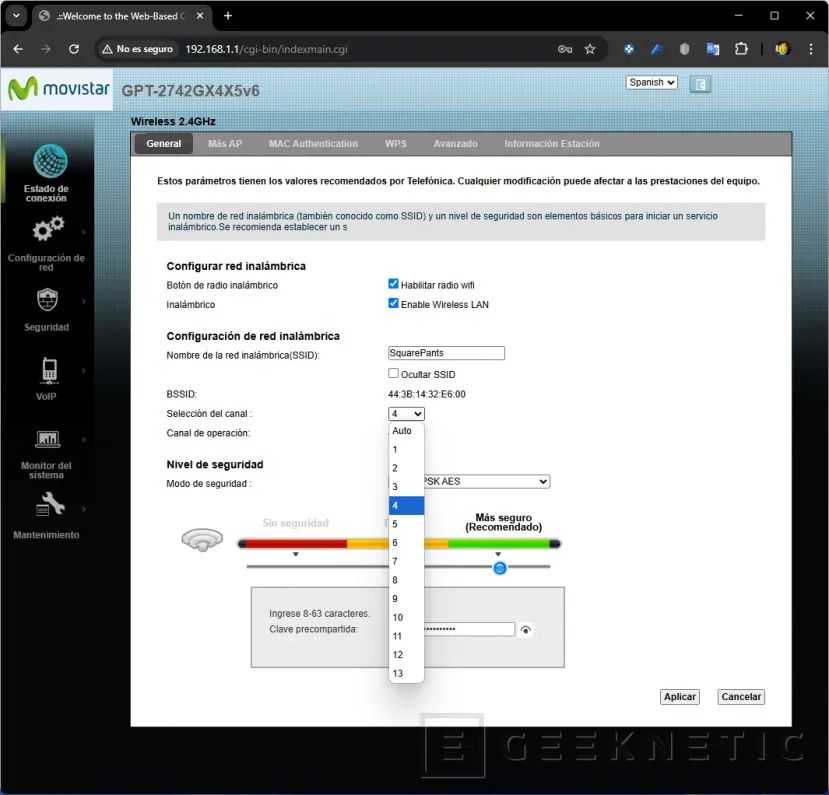
- Make sure save or apply changesit is possible that the router restarts the network and the devices are temporarily disconnected.
- Repeat the steps For each wifi network Have.
You must also keep in mind that if you have An access point You must make this configuration if you have separate networks.
Now wireless connection should be in an chord channel to operate without interference.
Use the best wifi channel to improve your connection
If your Internet connection is not very fine, it is possible that your wifi channel be saturatedthis shows when the devices navigate slow, disconnect randomly, or even has less scope than usual.
Choosing the best wifi network channel can solve these problems, even improve your bandwidth, but you must change it to one that is less saturatedthat is, a channel that is freer than you are currently operating.
Check these values occasionally To verify that it continues in an unstressed channel available in your area, otherwise you can Repeat the steps To change the channel to the most suitable.
