
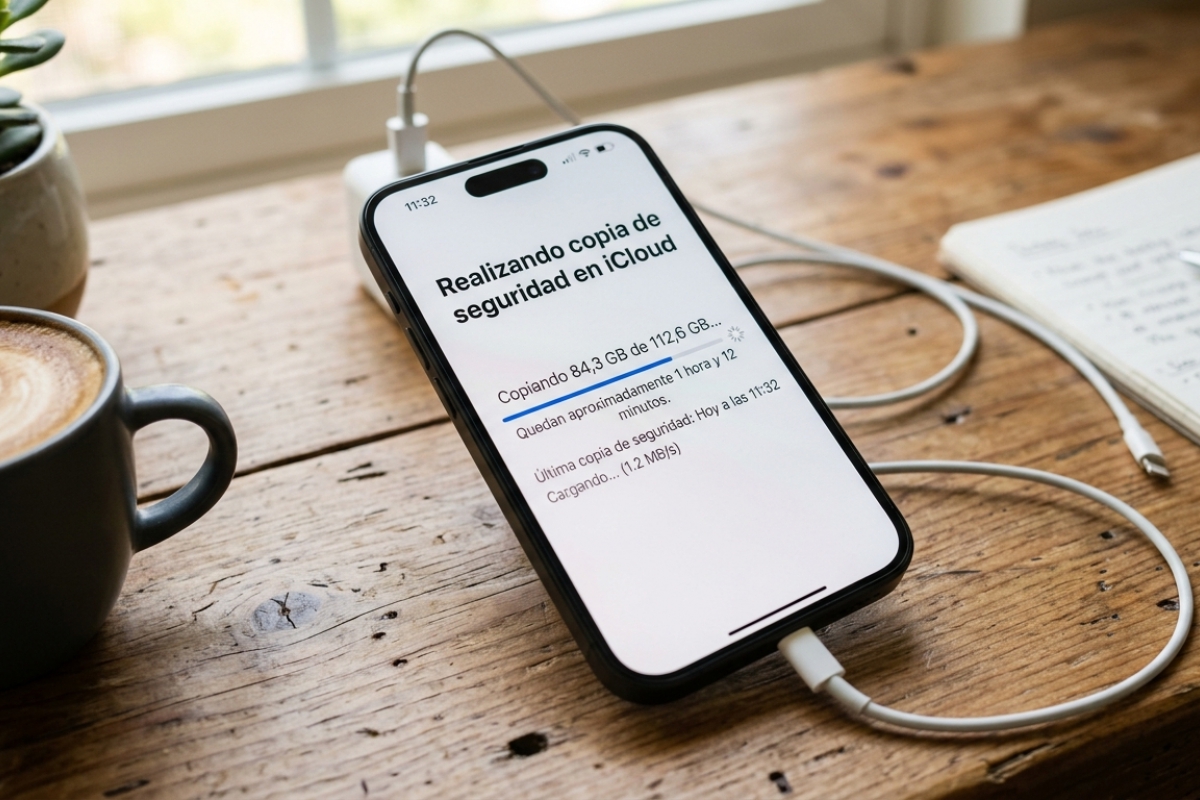
How to backup or sync data in iCloud with your Apple iPhone
iCloud backups of your iPhone
When Apple releases new devices, or even after, many users change their iPhone for the new model to take advantage of some of its new features. But changing phones means having to transfer the data from the old one, and many times we do not have it available since it has been damaged or lost. In this case, the backupand in this guide we are going to show you how to do it on your Apple phone.
To make the copy You will not need any third-party programs, this is a function that is already integrated into the operating system itself iOS. In this case we will focus on making a backup copy for devices iPhonebut don’t worry if you have a Androidyou can follow our guide for phones with Google’s operating system.
In the event of any unforeseen event with our iPhone the copy It can save us to continue with all the data we had on our phone. If your iPhone stops turning on, the screen breaks and you decide not to fix it, or even if you are going to fix it, the technical service may have to restore it and you will lose all its content. This backup will allow you to restore all your data practically as you had it on your previous phone.
Apple save the contacts, calendar, messages and MMS, photos and videosetc. Any data that you do not have linked to iCloud (Apple cloud) is included in the copy. If you have some data connected, it will go to the cloud directly and even if you delete the content of your phone, it will remain intact on Apple’s servers.
This is very useful not only if you have to take your phone in for repair, but also if you buy a new one. iPhone. With the backup you can restore all the data included in it, and those stored in the cloud, automatically to your new iPhone phone. This way you avoid problems if your old phone turns on, it has the same version of iOS or any other inconvenience.
To make the backup on iOS You don’t need to make major adjustments or know the iOS operating system in depth. The essential requirement, as already happens with copies on Android, is to have a active iCloud account.
Where iCloud backup is stored
Apple has its servers distributed around the world, and these data centers is where your data goes when you make a backup or link the data using iCloud. It not only has its own servers spread across different locations, but also has partners such as Google Cloud and Amazon Web Services (AWS) to trust your customers’ data.
The location of these servers is very varied, and your data generally ends up in the one closest to your location. This information is never revealed by the apple giant, committing to save your data at all times in the most secure way.
As with Android phones, the backup It is also encrypted. This copy is encrypted both when sending the data and when it is stored on the server, remaining secure at all times in case someone intercepts packets along the way or on the server itself where it is stored. You also have the option of using the advanced data protectionbeing end-to-end encrypted, in this case not even the manufacturer itself can read it.
iPhone Backup Management
To be able to do it you will not have to resort to any type of additional or third-party software. This option is integrated directly into the operating system or iPadOS itself. You will only have to access the correct option to be able to make the copy, we will tell you about it a little further down.
With the account of iCloud free are given away 5 GB of storage spacea somewhat ridiculous figure if we take into account the photographs we want to save, the data on our Mac, etc. But the computing giant also offers you other plans to expand this capacity, of course, for a modest amount to pay per month.
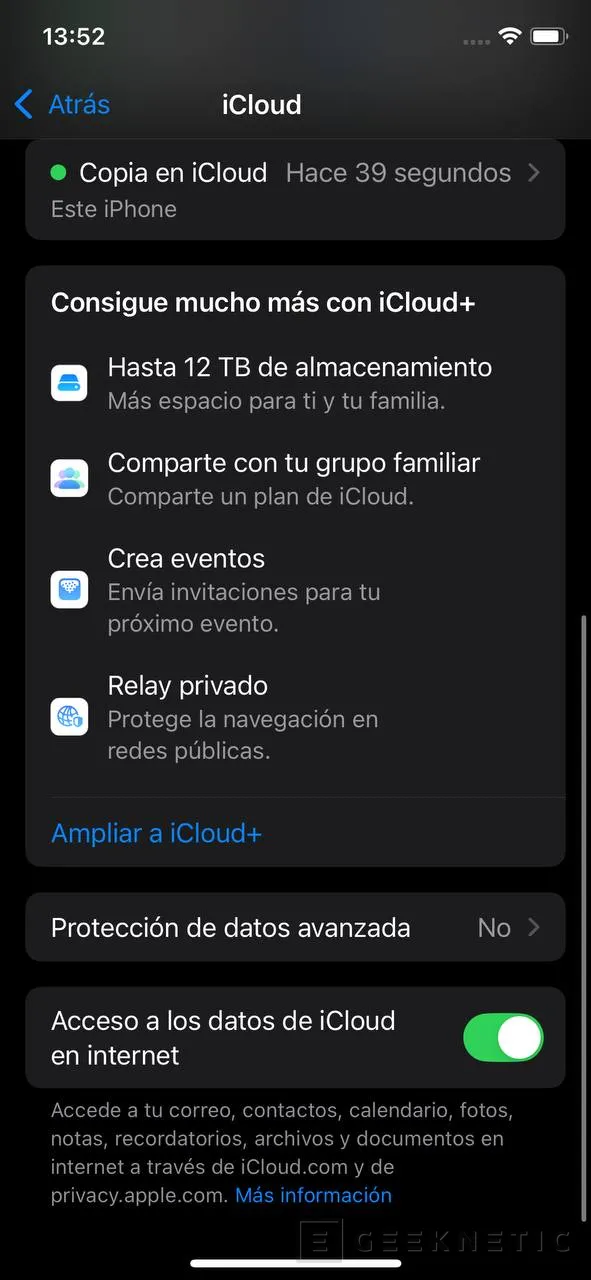
Regardless of the space you have in the cloudwhether the 5 GB free or a higher amount through an extra subscription, we will have to go to the iCloud section of our iPhone (it can also be an iPad or iPod for example):
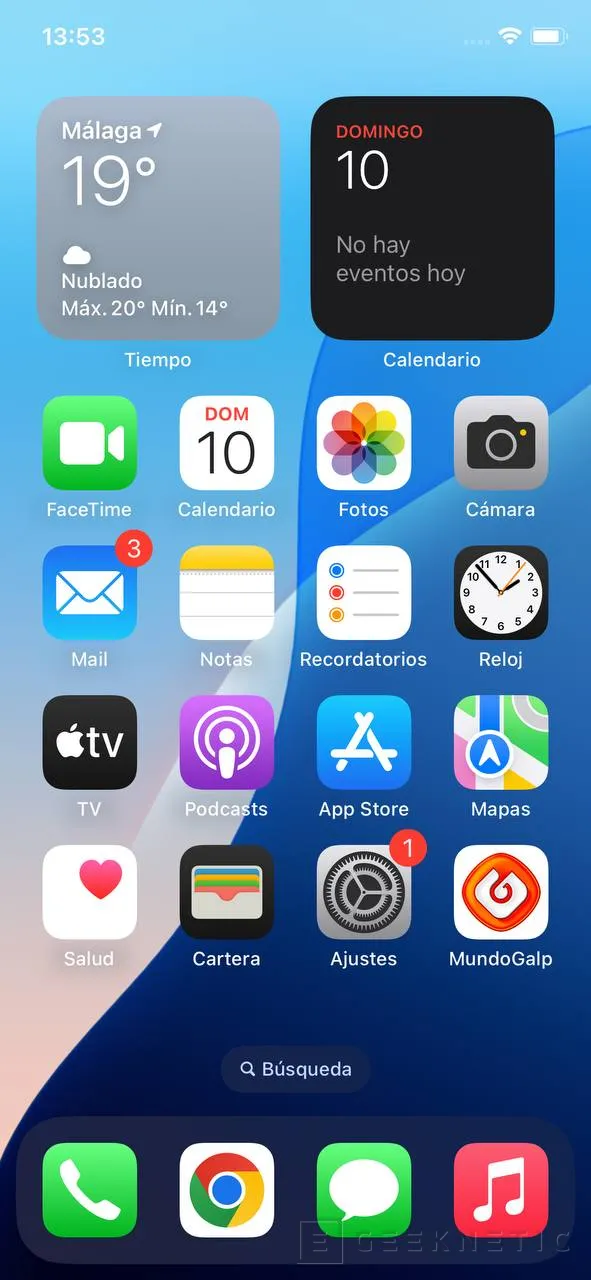
- Go to the device settings.
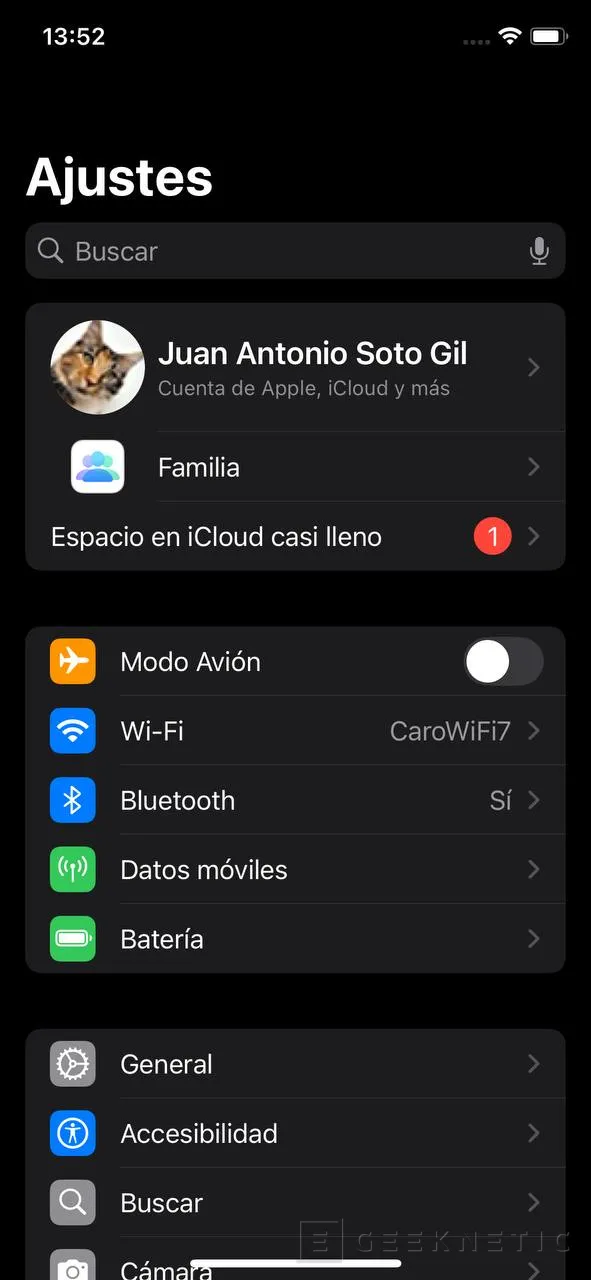
- Click on your name to access your iCloud account.
- Look for the section iCloud below and click on it to see the different options.
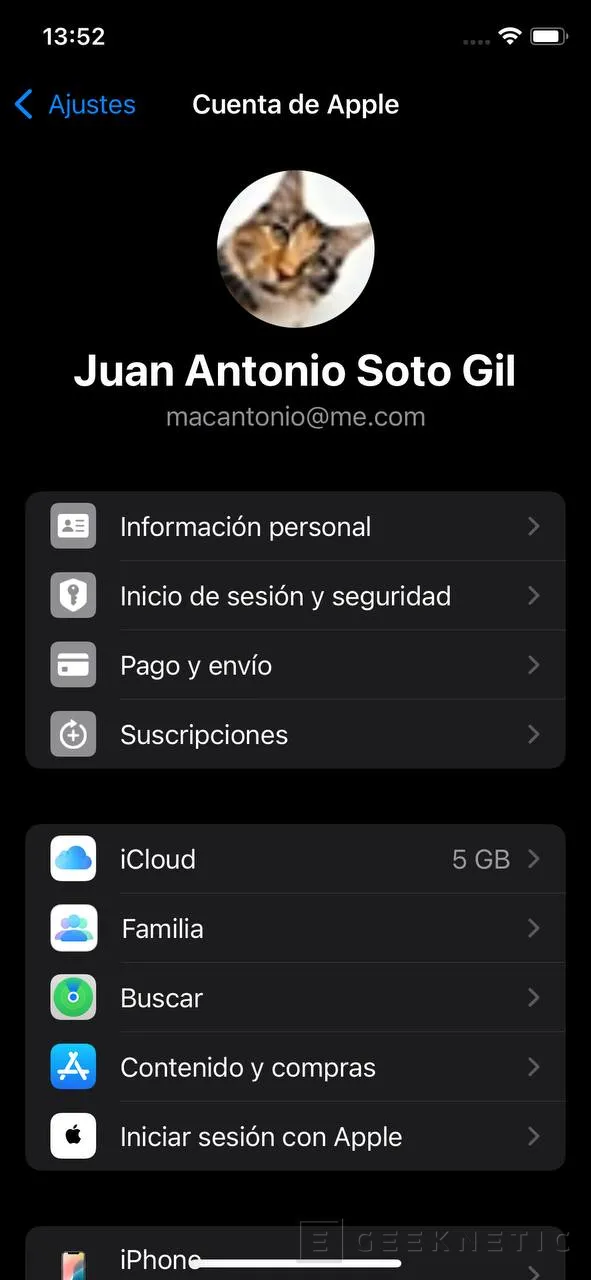
- Once inside, you can manage the data you want to take to iCloud and select to do the backup.
You may wonder what the difference is between sync data with iCloud and do the copysince data that is not linked to iCloud will be added to be included in the backup.
It is very simple, the data that is going to be the cloud The word itself gives us a clue, they leave with almost immediate effect. This means that every time we make a change they will be automatically reflected on the servers. For example, if we have the photoswhen we take a new photo it will be uploaded immediately to keep the copy safe.
If, on the other hand, it is not linked, we will have to wait for the manual or automatic copy to keep the data safe.
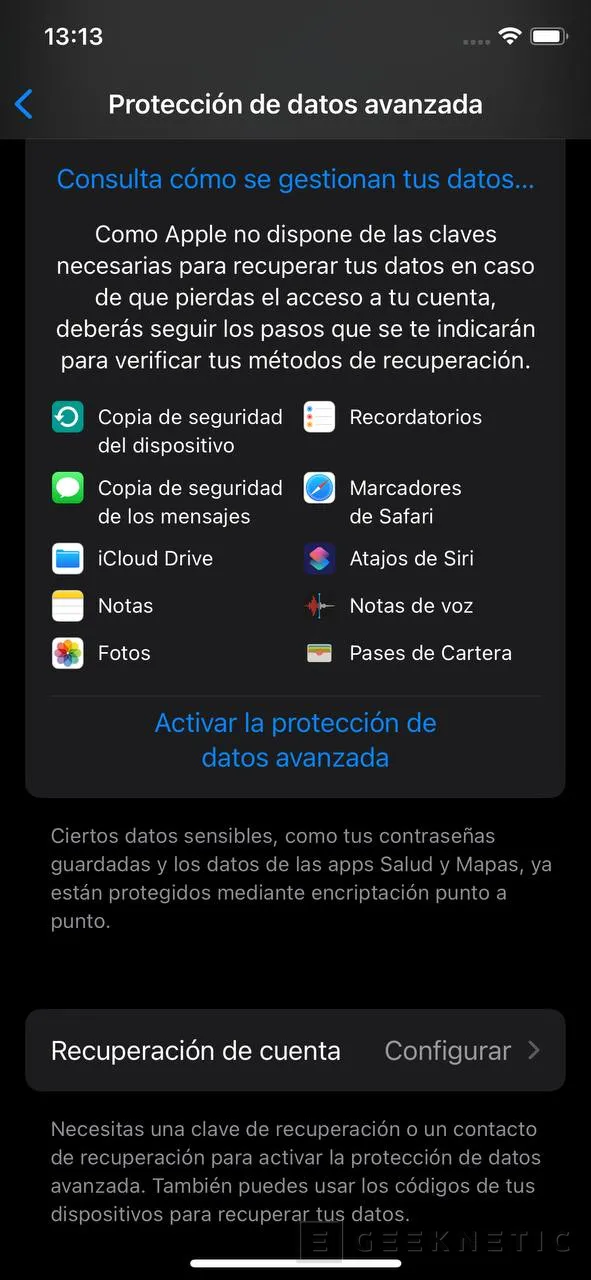
Have the iCloud sync It has its advantages, such as faster data backup. Although it is not immediately copied to the cloud much more frequently than it is backed up. On the contrary, this will consume more data if we do not have a connection Wi-Fiit will consume more battery, and we will need more available space.
If we run out of space in iCloudwhether with the free plan or a paid plan, the data will stop synchronizing, copies will stop being made, and we will not even be able to receive or send email until there is available space in our iCloud account to execute these tasks.
Take a manual backup on iPhone or iPad
The manual backup You can do it if you do not have the data in the cloud with iCloud, and you want to save something immediately so you can have a backup in case of an accident. If you need to save data quickly without waiting for a backup, and if you do not intend to sync it, you can use manual backup.
You just have to follow these steps.
- Enter the menu iCloud as we have done before.
- Look for the option Back up to iCloud and click on it to enter the options.
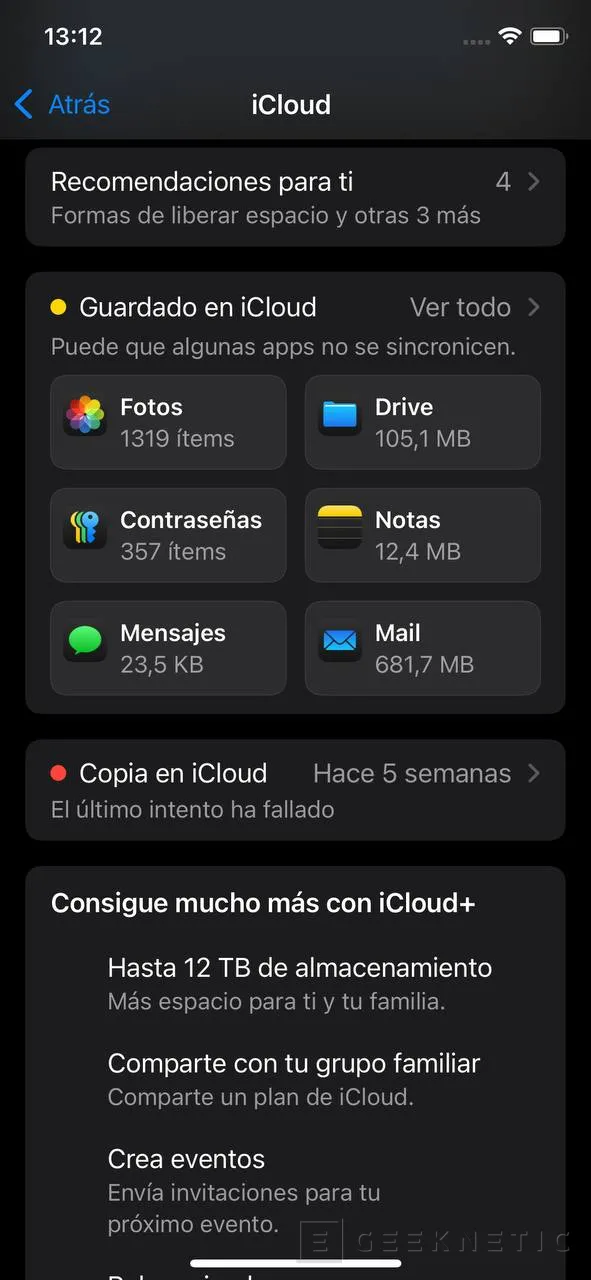
- Once inside, tap Back up now.
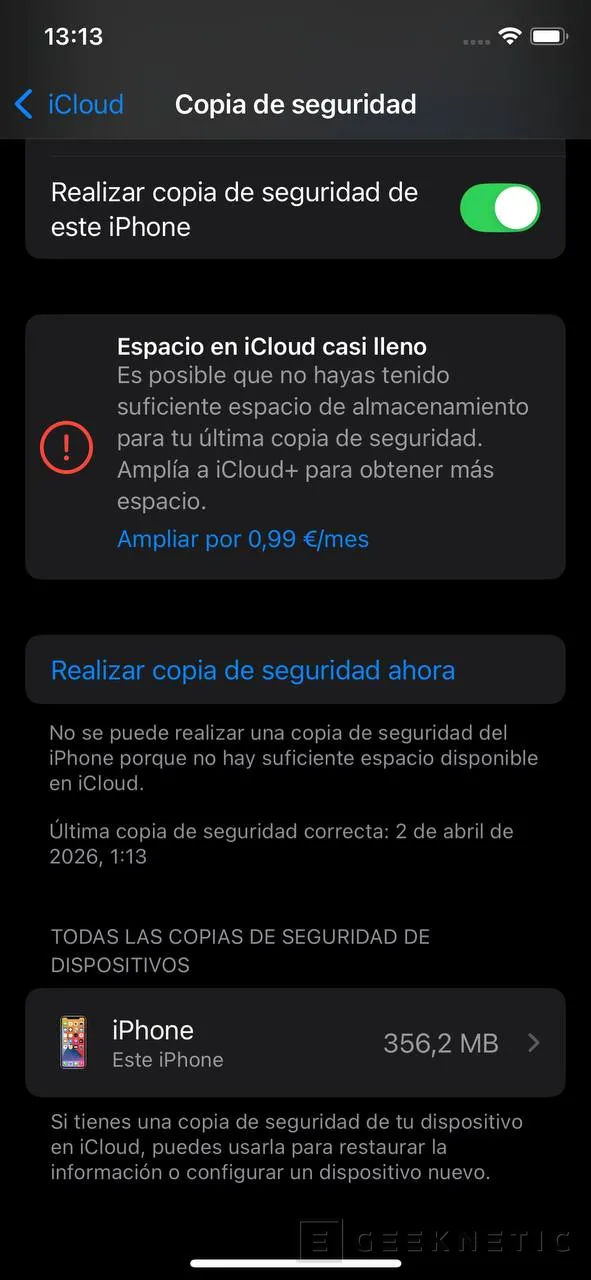
If you have the space, making a backup will only take a few minutes, always depending on the speed at which you can copy the data and the amount of data you have to copy.
Automatic backup without additional Apps
If you want to avoid making copies, even if you occasionally need a manual as we have explained before, it is best to leave the copies programmed. automatic backups.
To make a automatic backup Some aspects must be met, these are:
- Must be connected to a network Wi-Fimobile data is not valid.
- It has to be locked and the screen off.
- It must be charging, plugged in with cable, with charge MagSafe or wireless.
- There must be enough space in iCloud.
To activate the automatic backup you just have to follow these steps.
1- You must get to the menu iCloud just as we have done before.
2- Look for the option Backup and click on it to enter the options.
3- You must activate the box Back up this iPhone.
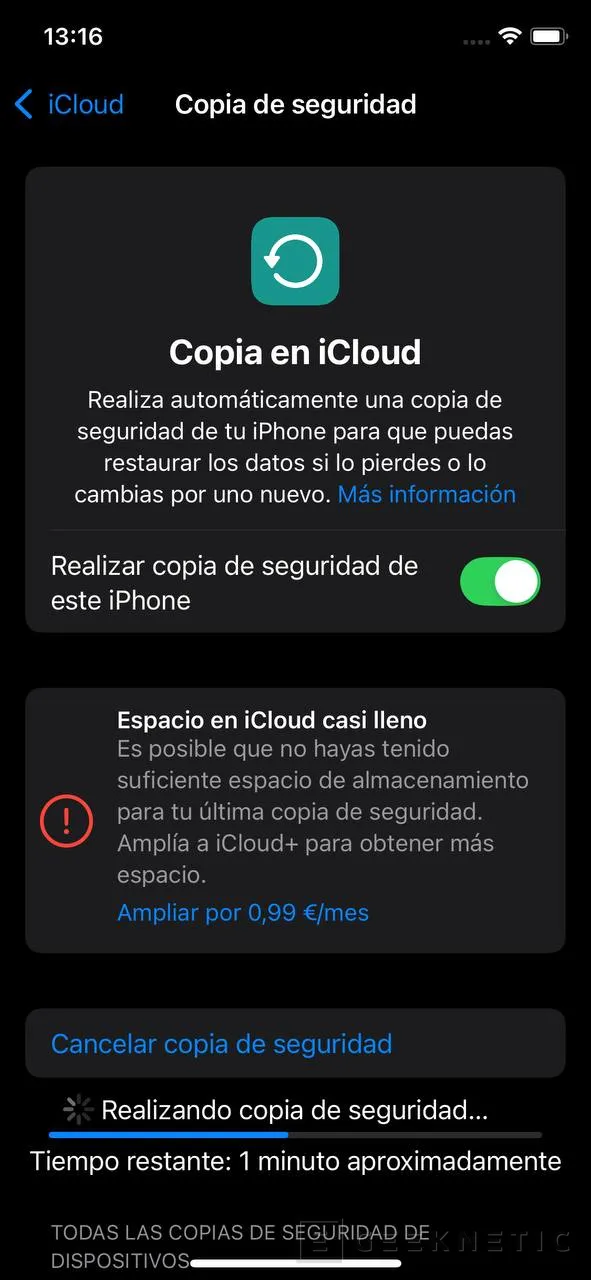
When you meet the requirements, the phone will make a automatic backup of data that is not put in iCloud.
Sync iPhone data to iCloud
As we have said before, this option offers the advantage that when changes are detected, they will be uploaded directly to iCloud. In addition, you can access the data from any device connected to the internet, if you have the photos You can see them, if you have the contacts consult them, etc. Unlike with a backup, you can only access the data if you restore it to another compatible device.
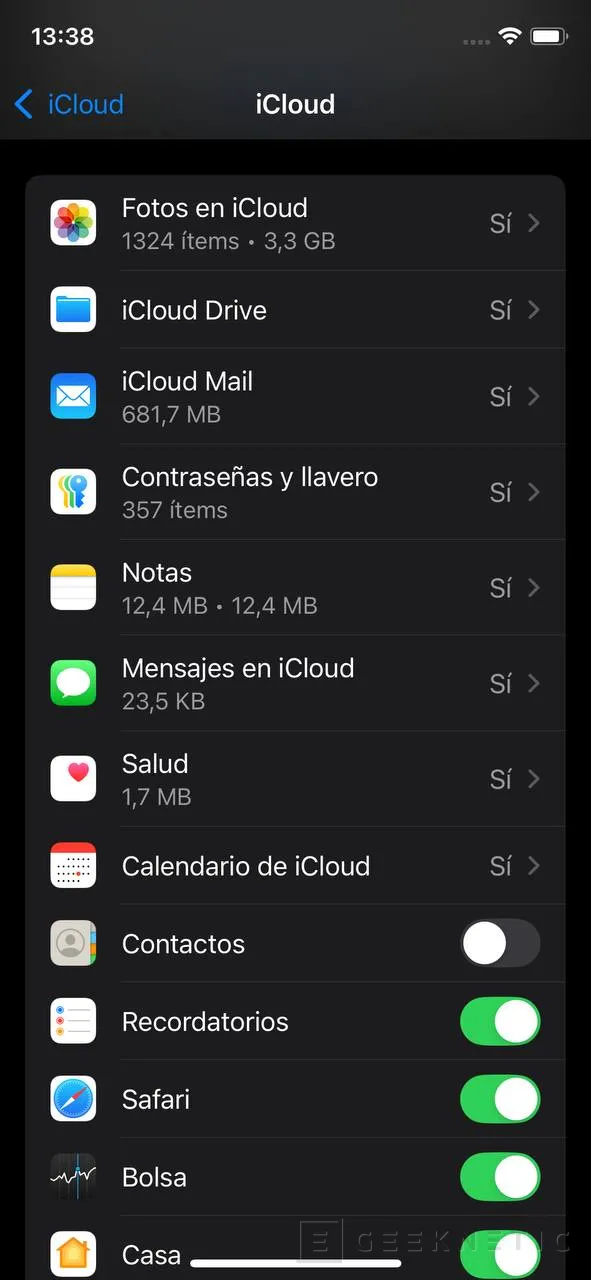
To be able to access the data from the internet if you have it on iCloudyou must check the corresponding box at the end of the iCloud menu “Access to iCloud data on the internet”.
You can select a multitude of data to upload to iCloudand these will no longer be included in the backup for faster synchronization. These are:
- iCloud Photos
- iCloud Drive
- iCloud Mail
- Passwords and keychain
- Grades
- Messages in iCloud
- Health
- iCloud Calendar
- Contacts
- Reminders
- Safari
- Bag
- Home
- Briefcase
- Game Center
- Siri
- Freeform
- Diary
- Phone and FaceTime
- Shortcuts
- Calendar
- Maps
- Music
- Voice Notes
- Clock
- Time
- Translate
- Telegram
- Uber
- waze
Some options will be enough to check the corresponding box, for others you will have to enter and check it from within, since the latter will also offer additional configuration such as data management in iCloud (in case you want to delete some or see what they occupy, etc.).
Select the data that you are interested in having a copy of most immediately, and you can leave it for the backup those that are less relevant.
Keep data safe with iCloud storage
Create a copy of the data you value most immediately (or almost so) by syncing it with iCloudyou can leave the rest for manual or automatic copy. You can also create a manual copy when there is a relevant change that you want to keep at all costs, without waiting for a new copy.
You can manage the data as you see fit, either by syncing with iCloud the photoshe email and the passwords to have almost instant access on other devices, and leave the rest for the automatic backupusually every night.
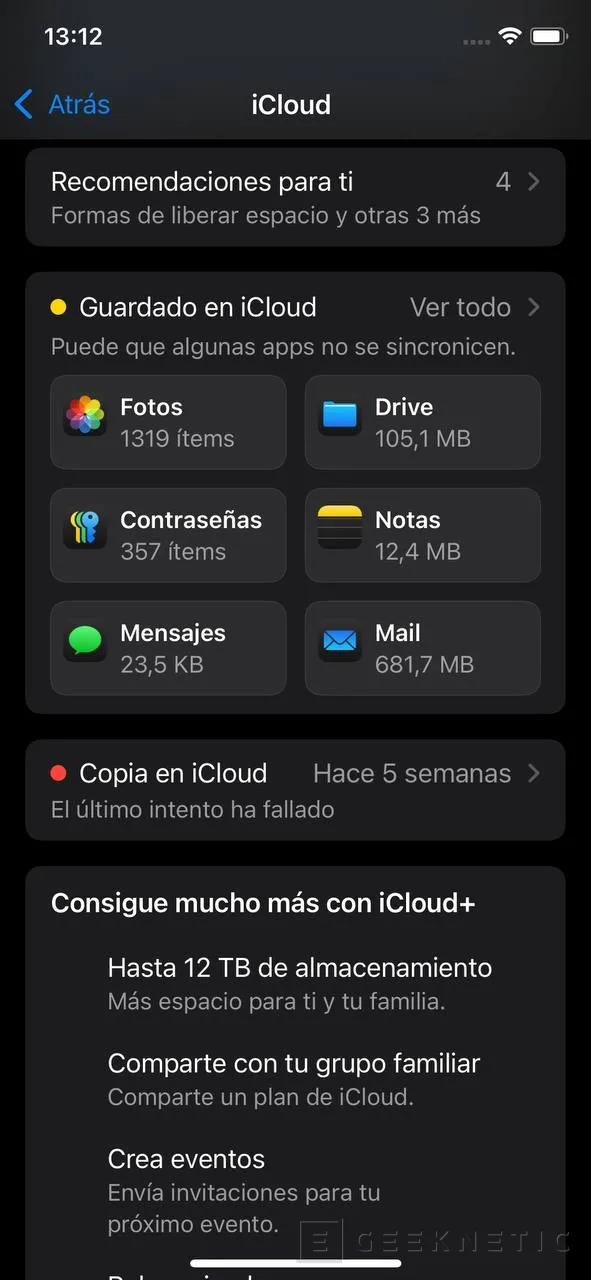
Whatever the case, do not be left without your data by managing it correctly to preserve it in the event of any unforeseen event or accident.
