
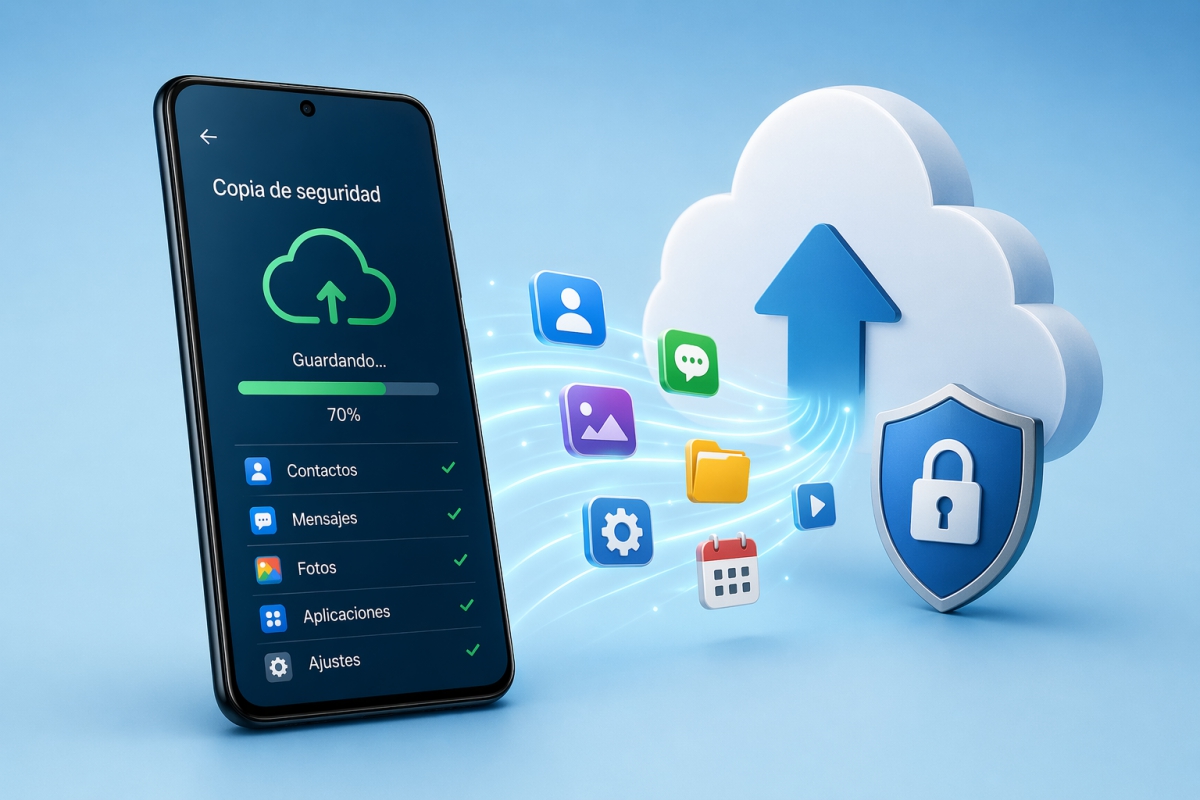
How to make a full backup manually and automatically on Android
Backups of your Android device
When we buy a new phonethe first thing we usually do is transfer data from old to new. But this option is only valid if our phone turns on and works normallyhaving to resort to a backup in case the old one doesn’t work. The backup can save us from many problems, that is why it is ideal to always have it activated and to do it frequently. In this guide we are going to show you how you can create a complete backup with your Google account without needing Google One.
Don’t worry if you have a iPhone or an Androidwe are going to tell you how to do the backup on both systems. In this guide we will focus on users who have a phone with Android operating systemif you have an iPhone you can consult the other guide available to make your backup step by step. For this you will not need any Google application, since it is an option integrated into Android. Don’t worry about the Android version of your device either, this option is available from version 9 onwards.
The backup of your Android phone can save us in the event of an unforeseen event and thus be able to preserve all the data that is on our phone. Whether it stops turning on, the screen breaks, or even if you lose or steal it, your data will be safe in the cloud so you can restore it again. With the backup we will have this peace of mind that, if something happens, we can access all our data either with a new phone or when the broken one is repaired.
You can save the contacts, photos, calendars, notesetc., from your Android phone and will be stored in the cloud so you can retrieve them from another device. If you have to restore the backup, everything will return to its place, you can even automatically download the applications you had installed, although these will not have the authentication data.
You can also use the google backup if you buy a new phone and want to transfer all your data, although you can also do it from the old phone if it still works and turns on. If they are not on the same version of Android, you may have problems with the data being transferred between your device, so you can use the copy to restore them.
The backup on an Android is done in a quick and simpleso all users should have one, getting ahead of any unforeseen situation in which we could lose data. If you’ve just restored one, also make sure that when you’re done restoring the full copy it automatically continues backing up to your Android phone.
As an essential requirement, almost like any other service, it will be essential to have a Google account to make a backup copy.
Where Google data is stored
If you want to know where your data goes, backup copies are uploaded to Google, specifically to Google Data Center. These are the same ones that store Gmail email or calendar data. Some of the data is uploaded end-to-end encryption and they are protected by your pin, the unlock pattern or the password that you have set on your device.
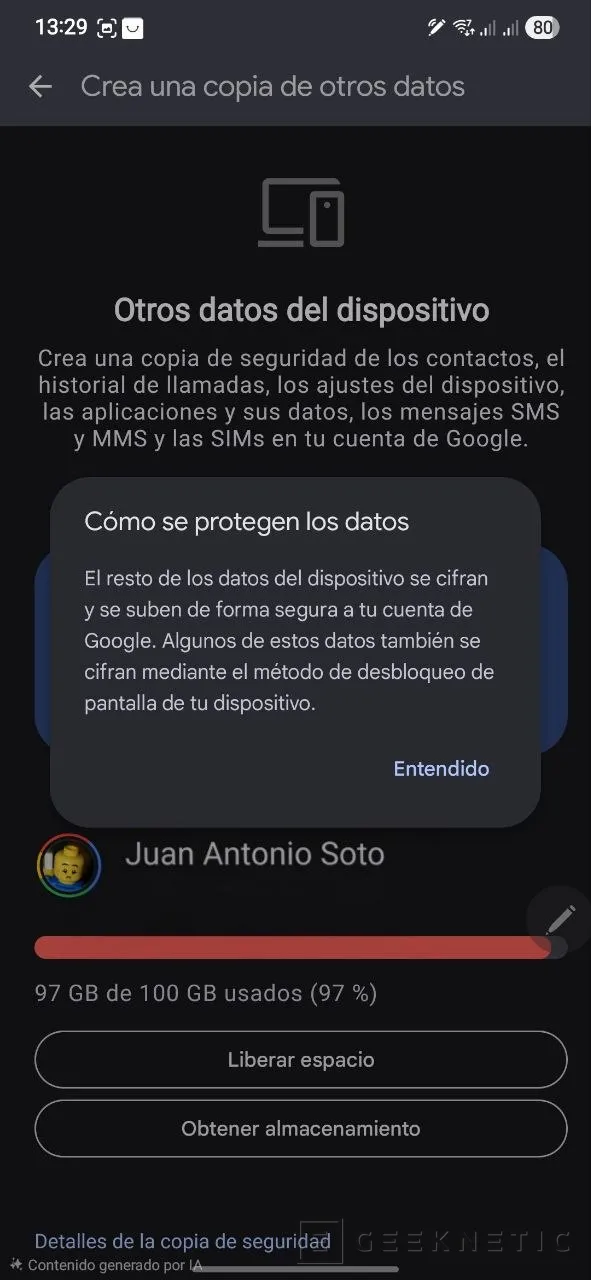
Google encrypts the data so that it is protected on its servers. Data such as photos, videos, messages and others They are encrypted when transferred from your device to Google servers. Other data adds extra encryption using whatever method you have on your phone as a screen lock, whether it’s a pin, pattern, or alphanumeric password. This method does not allow you to encrypt the photos or videos in Google Photos or the MMS you receive from your telephone operator.
Backup management with Google
Regardless of the Android device you have, it will have a menu where you can access the Google features. It is possible that the manufacturer itself (such as Samsung or Xiaomi) offers other options for backing up. These are perfectly valid, but due to better standardization when restoring data between brands, the best option is to do it directly with Google, which you will be able to restore on any Android phone.
Google allows you to create backup up to 15 GB of storage at no additional costalthough if you need more space you can choose one of their plans where the minimum offers 100 GB for your data. From the Google One application that you can find on Google Play you can also see the different plans that are available and increase your space for photos, videos and even to store your data on Google Drive.
Once this is chosen, the configuration process is very simple, follow these steps to create the automatic backup of your device.
- Go to the settings of your devicetap to open.
- Look for the option Google, or Google Servicesyou can also use the search engine that many incorporate to access this option.
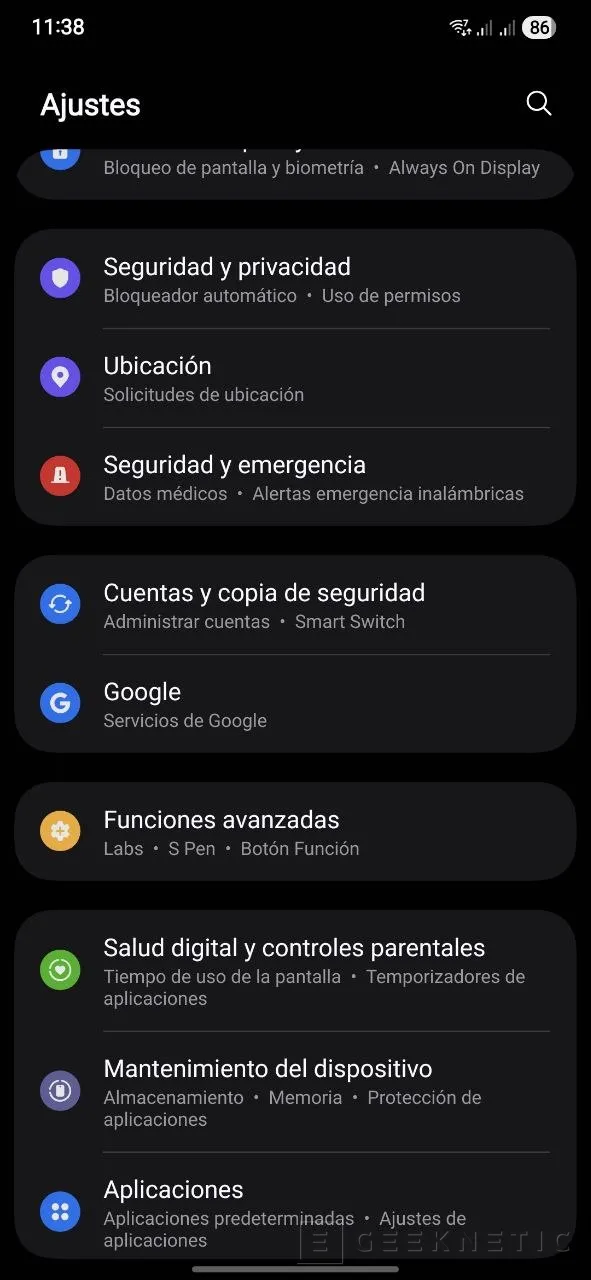
- Now click on All Services to access these options.
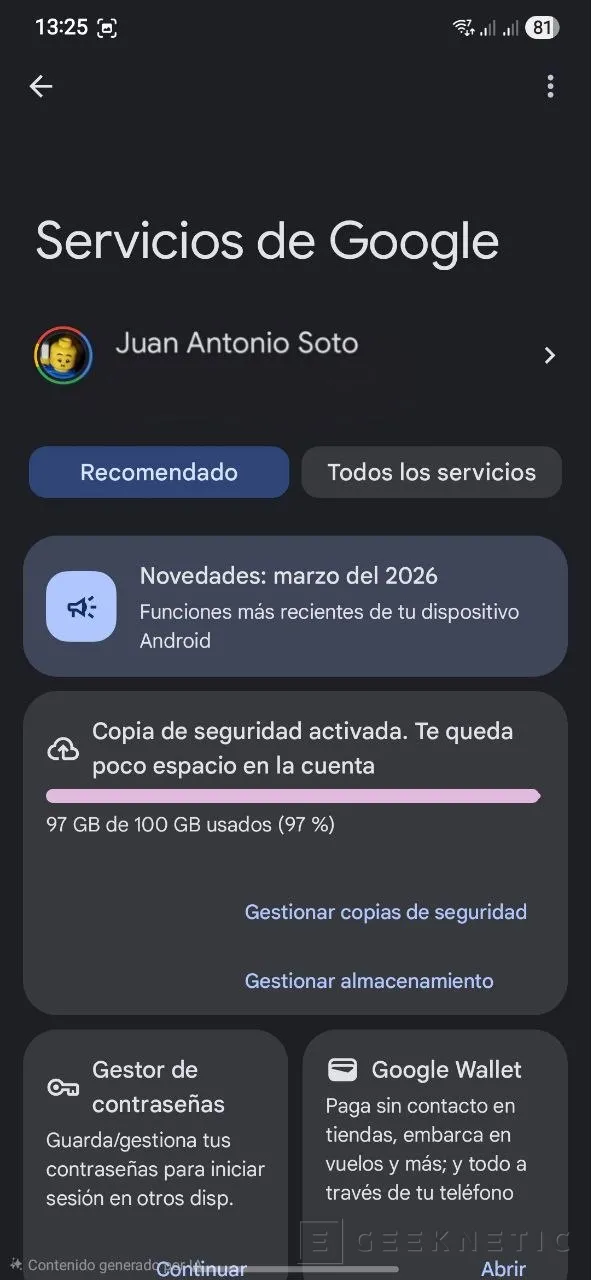
- Look for the section Backup and Restore and select the option Make Backup.
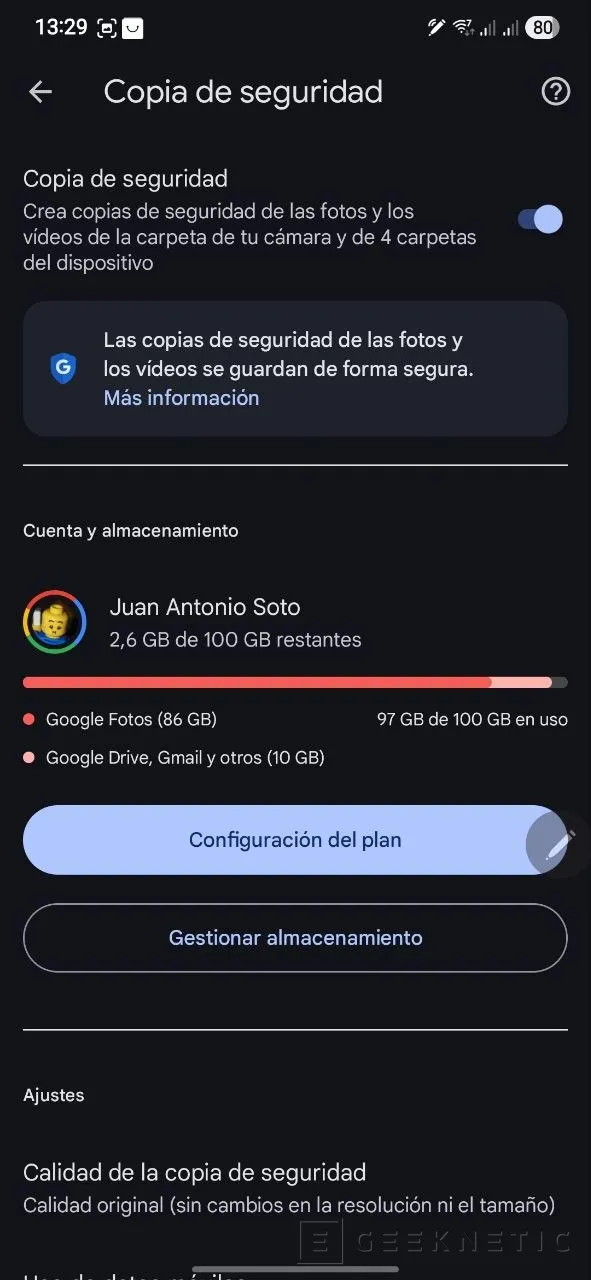
Once we have reached this section we have several options. We can make a manual backup whenever we want or we can also schedule a copy to be done automatically. For this second option, Google does it in two parts, Photos and Videos with the Google Photos app and the rest of the data types that it includes SMS and MMS messages, Call history, Device settings and Apps and their data. Google contacts are separate, since we usually have them synchronized with our account and they will be available when adding the Google account again.
Create a manual backup of your device data
Within this section we can make a manual backupto do it immediately you just have to press the green button that clearly indicates Back up now. The process will begin and a small circle will tell you the time remaining to complete the copy.
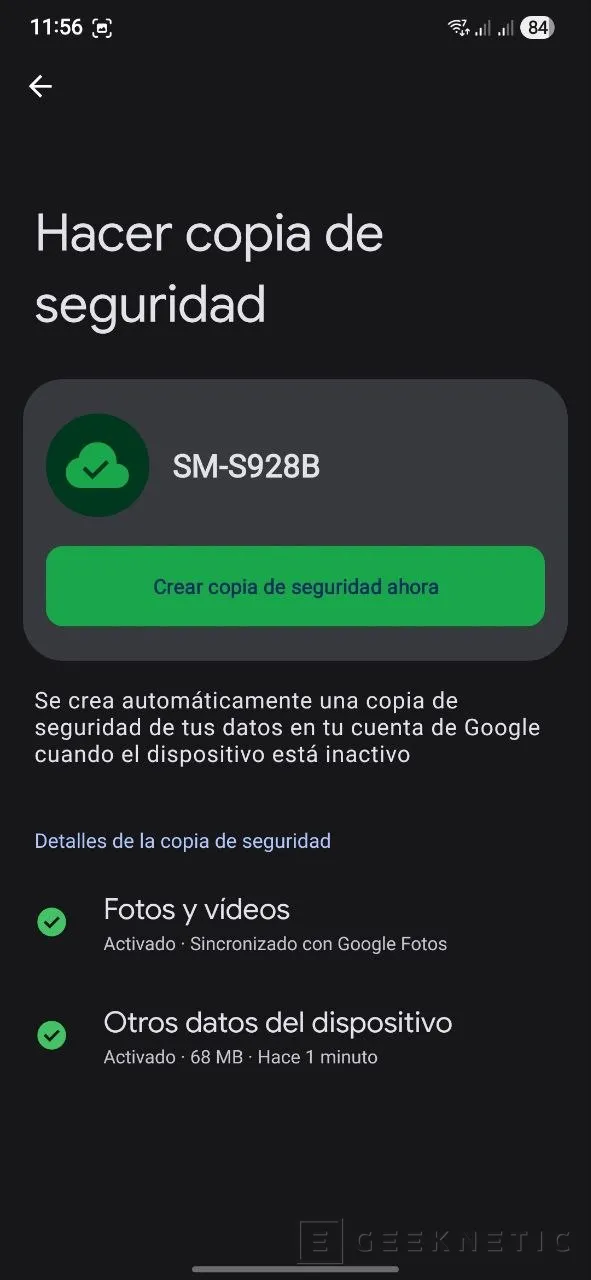
This method is ideal for making the first backup when you have everything configured and from here on do them automatically. It is also useful when you have any changes to your data that you want to back up immediately, so you won’t have to wait for the automatic backup to run if you have it scheduled.
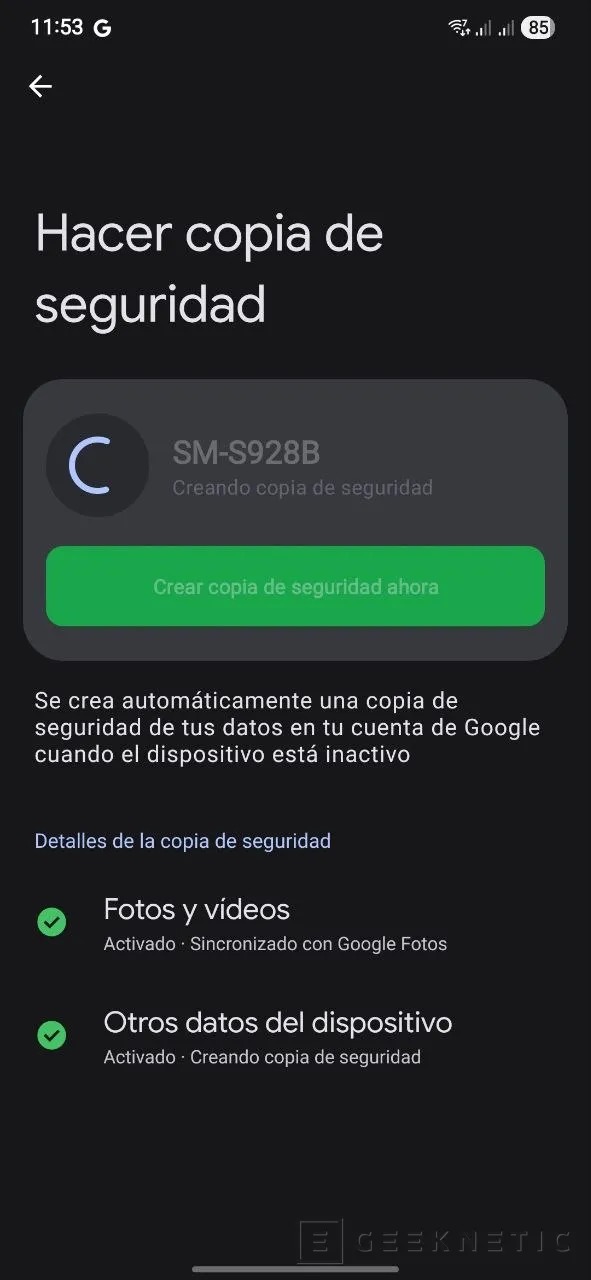
Making a manual backup does not invalidate the automatic backupthe copies will continue to be made according to the established schedule and this manual copy will be additional to these.
Automatically create backups
to do scheduled backups unattended from the gallery of our device we will have to use the two options below, you can select both or just one of the two.
- Click on Photos and Videos to enter this option.
- Activate the option Backup to sync your gallery with Google Photos.
- Below you will have options for the Backup Qualityhe Mobile Data Usage to make copies and Device Folders that you want to make the copy.
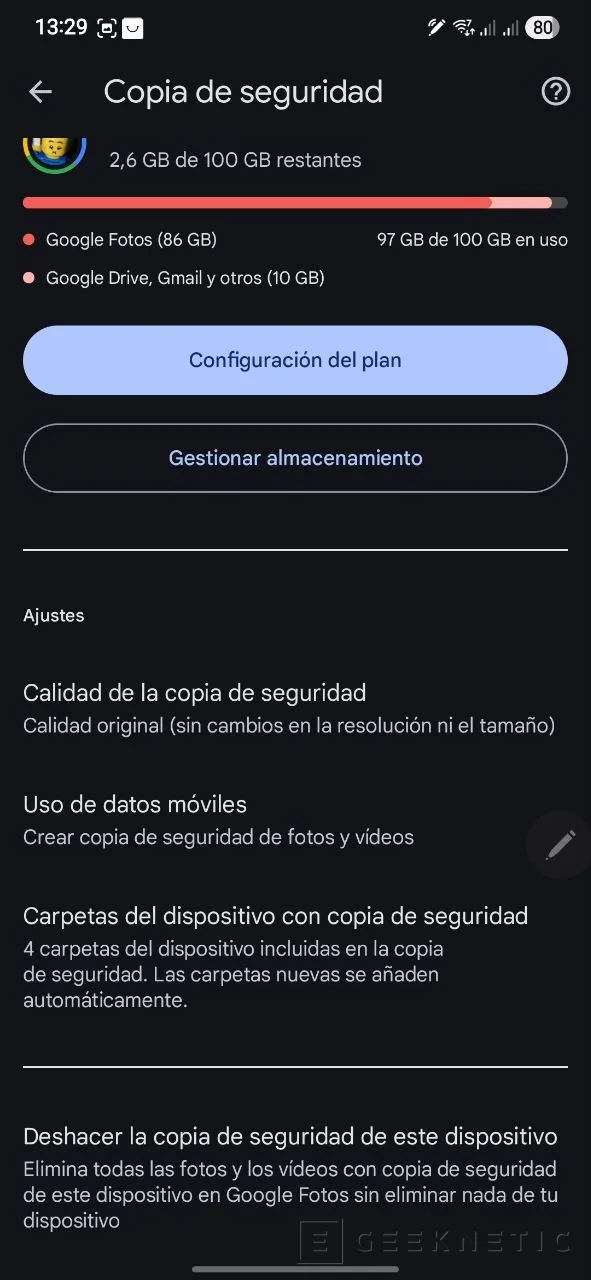
This way you will have the photos and videos synchronized with Google Photos and they will be available in Google Photos even online.
Unfortunately, Google does not allow you to select the data we want to copy, so it will have to be a copy of all the applications, settings and others that you can see in the list. To make a copy of Other Device Data follow these steps.
- Click on the option Other Device Data.
- Activate the option Create a Backup of Other Device Data.
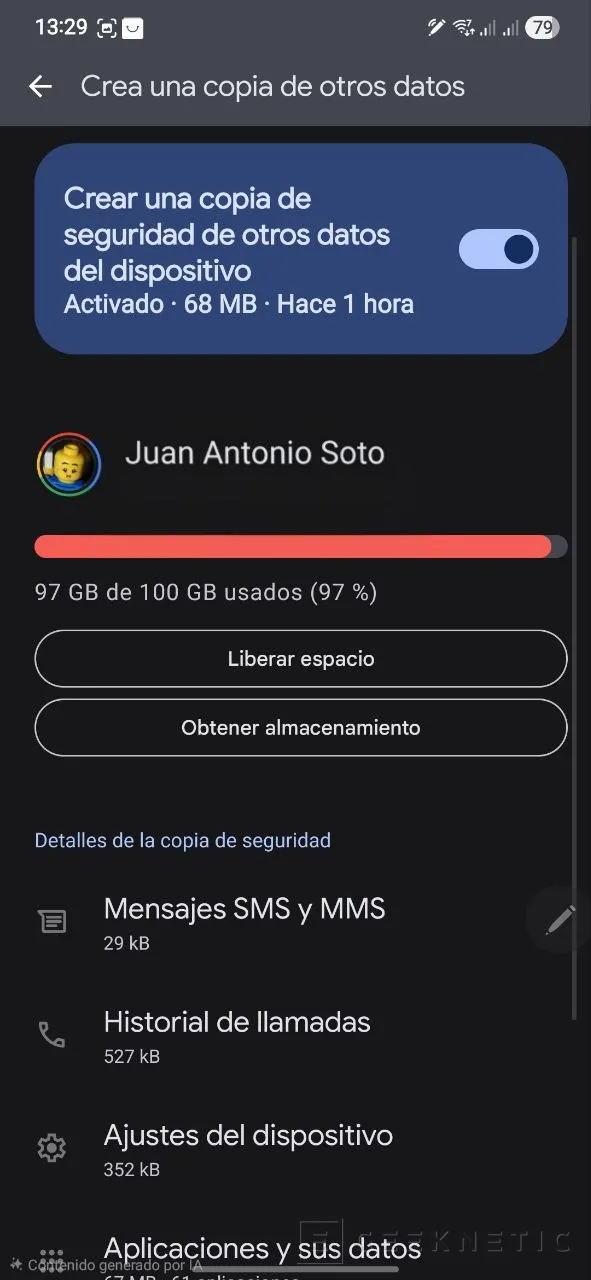
- At the end you have the option to make the copy using mobile data or Wi-Fiactivate it if you want the copy to take place when you do not have Wi-Fi available nearby.
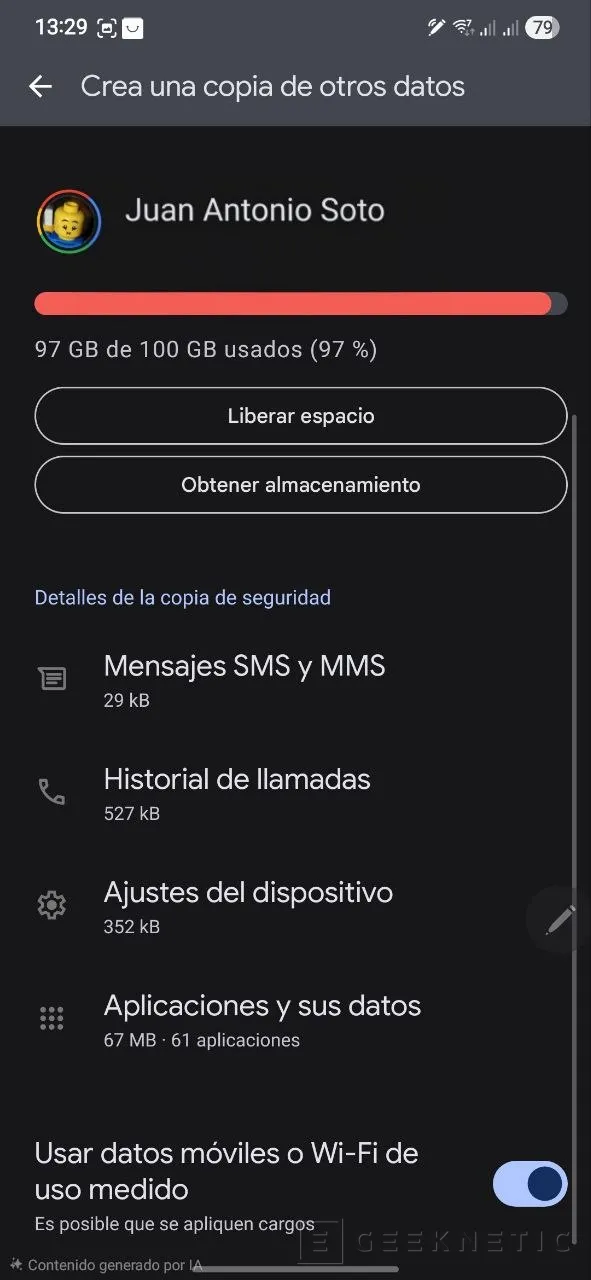
A very simple method in which Google also differentiates between multimedia content and other datauseful if you already have another service where you save your multimedia files and you want to create a copy of only the rest.
Keep the data on your new device safe
In this simple way you can keep your data safe, your photos, videos, system settings, messages, call historyetc. Even Google makes it easy for you if you want to save your Photos and Videos somewhere other than Google Photos, separating the services into two.
Don’t let it catch you by surprise, always have your data safe in any circumstance, you can even consult it online if you don’t have your device at hand. Just follow these simple steps to ensure you have your backup enabled and thus not lose anything in any situation that catches us by surprise.
