
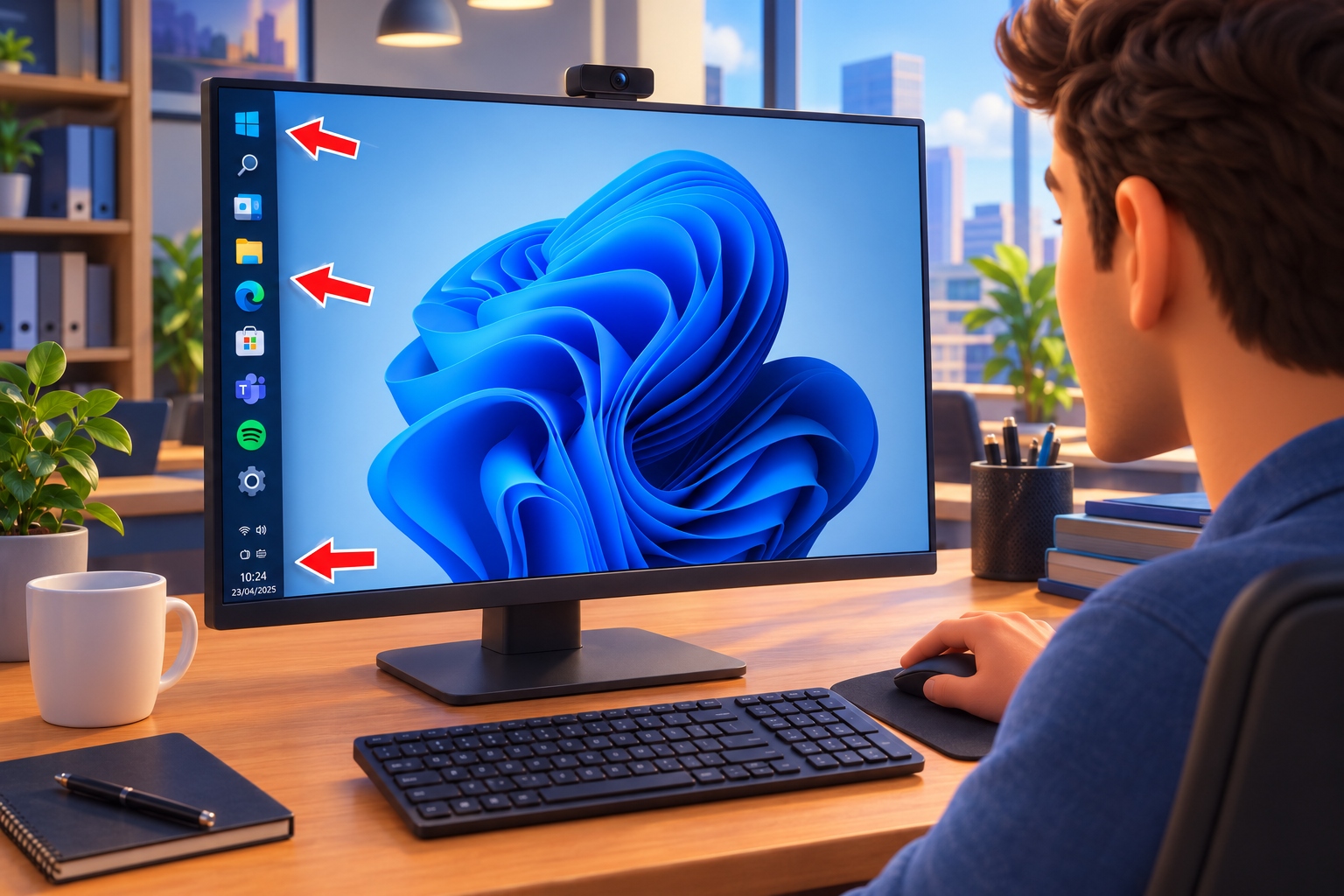
You can now move the Windows 11 taskbar wherever you want: so you can customize it step by step
The Windows 11 taskbar can now be moved!
In Windows 95, Microsoft decided that it was a good idea for the brand new taskbar to be movable. Since then, and until Windows 10, this element could be fix on the side of the screen desired by the user. However, with the arrival of Windows 11, the system developers decided to remake the bar from scratch. What was the result? That many of the functions of the taskbar disappeared, including the one that allowed it to be moved freely.
About 5 years later, Microsoft is very interested in regaining the trust of an increasingly disenchanted community. From this purpose Windows K2 was born, a supposed plan that aims to improve the stability of the system and recover those functions that users demand so much. One of those functions has already returned and it is precisely the one that allows you to change the location of the taskbar.
In the following guide I am going to explain how to do it in a few clicks. Furthermore, I invite you to review the different options that serve to customize this element to the maximum. If you want to give a unique touch to the taskbar and, at the same time, put it in the part of the screen that you want, stay with me. I’ll tell you everything in detail.
Change the position of the taskbar in Windows 11 in a couple of clicks
To move the taskbar to the side of the screen you want, just follow these simple steps:
- Right click on any empty area of the taskbar.
- From the drop-down menu, select Taskbar settings.
- When the app opens Configurationgo to the section Taskbar behavior. You will see the adjustment right there Taskbar position.
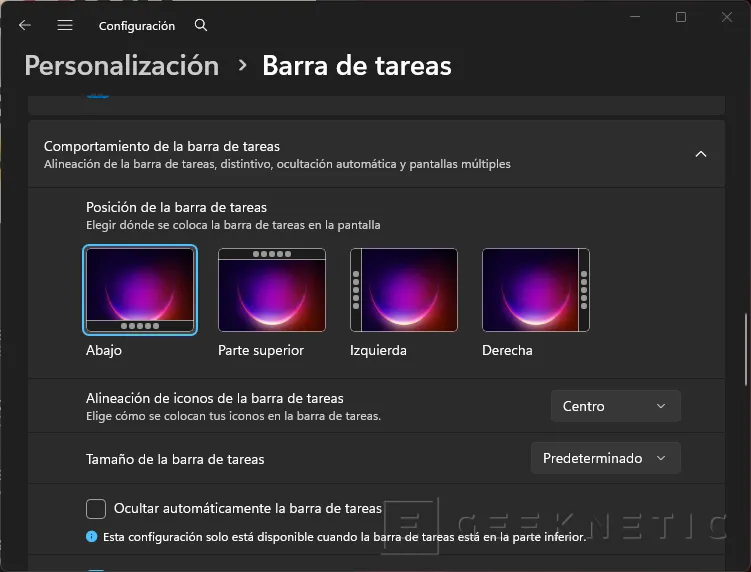
- Simply choose the position you want and that’s it! The bar will move there instantly.
As you can see, and fortunately for users, there is no need to use strange tricks or activate any flags with ViVeTool. Microsoft has made it really easy. Now, how can you make the taskbar even more personal? Let’s review all the options you have.
All the ways to customize the taskbar
In this same section where Microsoft has located the option to change the position of the taskbar, there are a lot of other options that you should know about. In the end, It is an element with which we interact again and again throughout the day And at least you can make it as yours as you want. Here I leave you some tricks that have been very useful to me.
Extra taskbar settings
To finish off the task, when displaying this last block of options, we find the options for the most basic behavior of the bar. This is where you can fine-tune the details of how you interact with it on a daily basis:
- Taskbar icon alignment. It is used to choose the placement of your icons. If you don’t get used to having them in the center, here you can return them to the traditional left.
- Taskbar size. It allows you to modify the dimensions of the bar so that it takes up just the space you need on the screen. If you have it on the side, the size is the same, although the icons look small. If you have it down or up, it becomes much thinner.
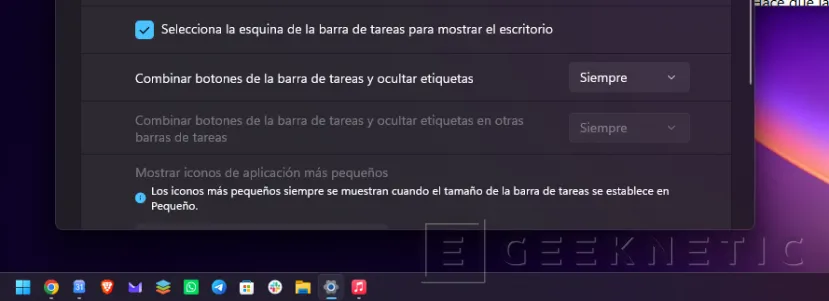
- Automatically hide the taskbar. It makes the bar hide when you are not using it to save space. Please note that this setting only works when the bar is at the bottom.
- Show badges in taskbar apps. Shows small notices or pending notification counters on the icon of each application.
- Show flickering in taskbar apps. Makes icons flash when a program in the background requires your attention.
- Share any window from my taskbar. Makes it easy to share an open window directly by hovering over its icon in the bar with a video calling app, such as Teams or Zoom. In addition to checking it in the settings, the developer must enable it for it to work.
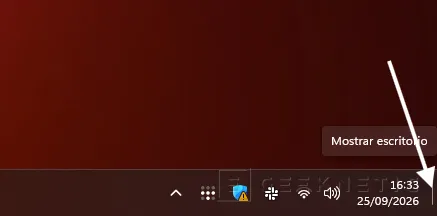
- Select the corner of the taskbar to show the desktop. Reactivate the classic trick of clicking in the lower right corner to minimize everything at once and clear the screen. It is most useful.
- Combine taskbar buttons and hide labels. It allows you to decide if you prefer to group the windows under a single button or if you like to see the names and titles of each one. Windows 11 allows you to do it always or only when the bar is full. If you deactivate it, the bar will look like this:

- Show smaller app icons. Automatically reduce the size of icons when the taskbar is full so that nothing is out of your view. It has the same options as the previous function.
With these final touches, the taskbar stops getting in the way and completely adapts to the way you work. In the end, spending a couple of minutes leaving it to your liking makes a big difference in your day-to-day life in front of the computer.
And if you are left wanting more…
If all this is not enough for you and what you are looking for is deep customization, I have bad news, but also good news. The bad news is that Microsoft gives what it gives and everything you have seen in the previous section is what you will be able to do officially. The good thing is that There are a good handful of third-party apps designed to modify this element so that it is almost unrecognizable.
One I have used personally is TranslucentTB. With this tool you can apply absolute or partial transparency to the taskbar. It is an app that runs in the background, but it is extremely light. I recommend it to you. You have it for free in the Microsoft Store.
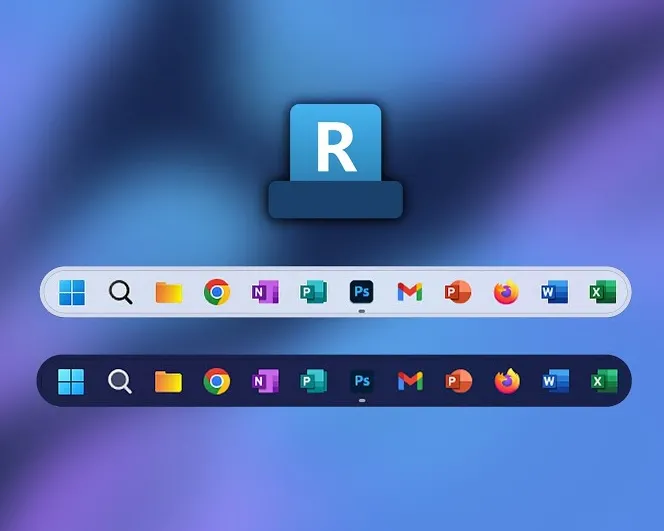
On the other hand, it is RoundedTB. As you see in the image above, this serves to make the taskbar become a dock, with rounded corners, in the purest macOS style. It is open source and free. You can download it from its official website.
Finally, we also recommend Windhawk, a Swiss army knife for customization in Windows, or ExplorerPatcher, which, among other things, allows you to recover the classic taskbar. Oh, and in the latest versions, PowerToys has also added a new customizable dock. It looks like this:
It doesn’t exactly serve to customize the taskbar, but it does add a similar element that you can customize with widgets and real-time data.
