
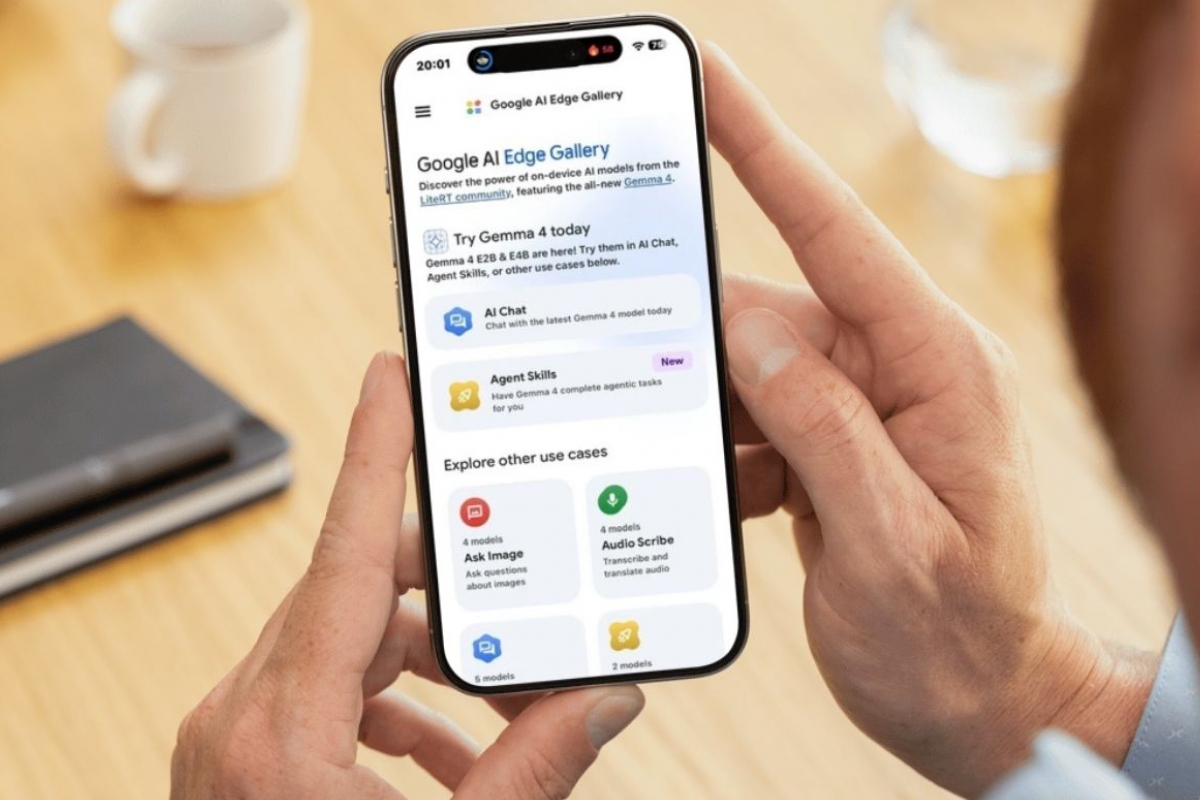
how to run Gemma 4 models on iOS and Android phones
What is Google AI Edge Gallery
Talk about AI on mobile It usually implies an almost automatic idea: that a good part of the work is done in the cloud. Google AI Edge Gallery It comes to break just with that. It is an app experimental, open source and developed by Google to run AI models directly on the devicewithout depending on remote servers for each query. In other words, it turns your phone into a small artificial intelligence laboratory that you can carry in your pocket and use even offline.
The application is available for both Android as for iOSand right now its great attraction is compatibility with the family Gemma 4Google’s new open models designed to offer a good balance between capacity, efficiency and local execution. If you want to put them a little more in context, you can also see this news about Gemma 4, because it helps to understand why this proposal is so striking.
The interesting thing about Google AI Edge Gallery The thing is that it doesn’t stop at the typical chat with a model. The app brings together several sections to talk to AI, ask about images, transcribe audio, test prompts with more control, execute actions on the device and even tinker with small experiments. Furthermore, all this happens locallywhich provides a very clear advantage: your messages, your photos or your recordings do not have to leave your mobile.
Obviously, we are facing a beta and that shows in the general approach. It is not so much an app designed for a mass user who wants a polished assistant, but rather an test box to experiment with the present of on-device AI. And that is precisely where its grace lies. What a few months ago seemed like a demonstration for developers, can now be installed on an ordinary smartphone and tested in a few minutes.
How to install the tool and start using it
start with Google AI Edge Gallery It’s pretty simple. In Androidthe most direct way is to download it from Google Play. If for any reason you do not have access to that store, you can also install the APK from the official project page at GitHub. In iPhonethe process is even simpler, because it is available in the App Store. According to official information, the minimum requirements are Android 12 or higher and iOS 17 or higher.
I have tried it in a iPhone 17 Proand the experience has been really good. The interface moves easily, the models respond with agility and the general feeling is that there is a lot of work behind it despite being a beta. Of course, one thing is for the app to install without a problem and quite another is how each model will perform according to the hardware of each mobile. The application itself can work on many devices, but what is really important here is choose the model well.
The screenshots show very well how the tool is designed. There are large and more ambitious models, such as Gemma-4-E4B-itwhich promise more capacity, but also require more space and resources. There are also alternatives such as Gemma-4-E2B-it, Gemma-3n-E2B-it either Gemma-3n-E4B-italong with smaller and specialized proposals, such as Gemma3-1B-IT, MobileActions-270M either TinyGarden-270M. In other words, the biggest doesn’t always win here. Sometimes it is more worthwhile to download a slightly lighter model if this means we get a faster and more stable experience.
Steps to download models
At this point, the app also makes things easy. There is no need to fight with strange menus or strange configurations.
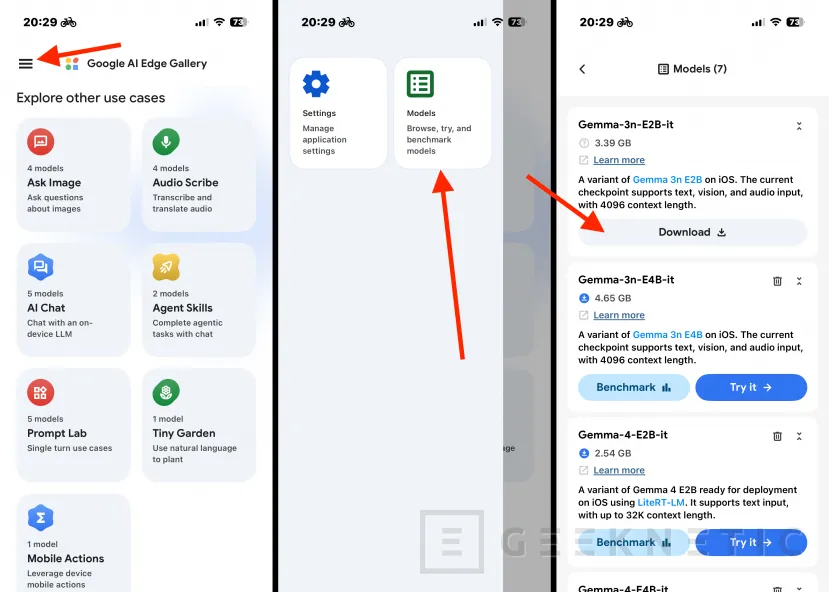
The first thing is open side menu. Then, it’s time to enter the section modelswhere the list of available models appears, their size and the options to download them, test them or benchmark them in some cases. From there, you just have to click on Download about the model that interests you most.
The good thing is that many of them are multimodalso they are not intended for a single function. For example, Gemma-4-E4B-itwhich is the most powerful of those that appear in the screenshots, can serve as chatbotfor ask about an image or for transcribe audio within the application itself. That is, you download a model and then reuse it in different sections of the app.
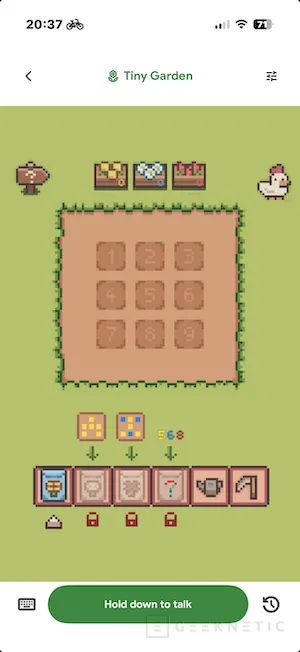
Along with these more general models, there are also much more specific ones. TinyGarden-270M is intended for a small playable experiment in which you use natural language to plant and manage a virtual garden. MobileActions-270Mfor its part, points to actions within the device. They are perfect examples that this app not only wants to show models, but also teach what kind of new experiences can be built with them.
All features available
Google AI Edge Gallery is organized as a showcase of real uses, and that makes it very easy to understand what each block is for.
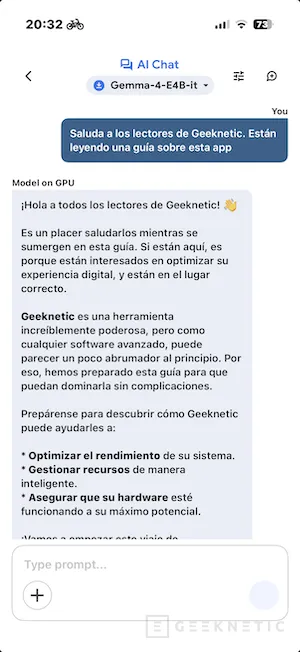
- AI Chat. It is the most natural entrance door. Here you can chat with the model as if it were a classic chatbot, but running on the phone itself. It is the most direct section to measure the extent to which local AI can already feel fast and comfortable on a day-to-day basis.
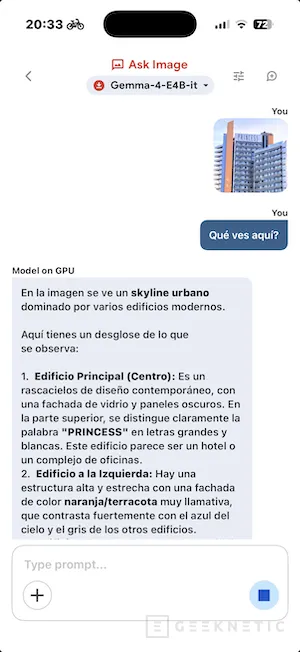
- Ask Image. This mode takes advantage of multimodal capabilities to analyze photos and images. Use it to ask what’s in a scene, ask for descriptions, or even use an image as a starting point for additional context.
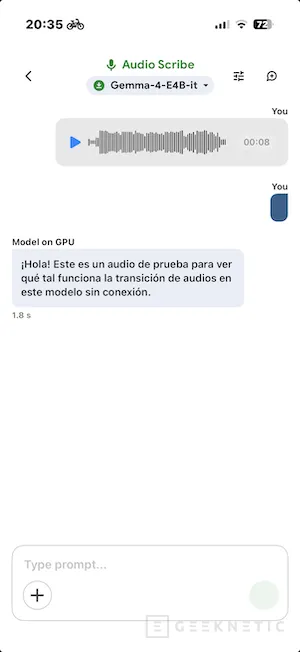
- Audio Scribe. Probably one of the most attractive features of the entire app. It allows you to transcribe and translate audio locally, without depending on external services, which makes it a very attractive tool for those who value privacy and zero cost.
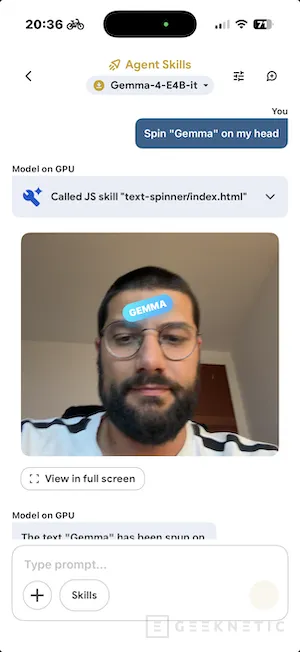
- Agent Skills. Here the AI stops just responding and gains additional tools. It is the most experimental part of the app, because it points to a model capable of relying on extra functions to solve tasks in a richer way.
- Prompt Lab. It is a kind of test bed for those who want to go one step further. It allows you to launch specific prompts and play with certain parameters to see how the behavior of the model changes.
- Tiny Garden. A nice and quite useful experiment to understand that local AI does not have to be limited to writing text. Here natural language is used to control a little virtual gardening game.
- Mobile Actions. This section teaches another interesting idea: using fine-tuned models to execute actions within the device. It is still in a very experimental phase, but it suggests a very suggestive future.
As you can imagine, none of these functions require an Internet connection, or a Google account, or anything similar.
An experiment worth trying
Google AI Edge Gallery It is not yet the definitive application that will completely change how we use AI on mobile. But it is a very serious demonstration of where everything is moving. It brings us closer to a future where having capable AI running quickly and fluidly on our own device is no longer a rarity. There are still limits, especially in size, consumption and power, but for me the direction is very clear.
Meanwhile, it already works as a magnificent toolbox to test very specific things. Some, like the local transcriptionthey will be useful to you right now, because they allow you to do useful tasks, for free and without paying subscriptions or sending data outside the phone. Perhaps that is not yet the complete future of AI, but it certainly seems to be a very important part of the future to come.
